> ## Documentation Index
> Fetch the complete documentation index at: https://sequinstream.com/docs/llms.txt
> Use this file to discover all available pages before exploring further.
# Trigger Cloudflare Workers from database changes
> Deploy global, edge-based applications that respond to Postgres changes. Connect Sequin to Cloudflare Workers for real-time database event processing.
[Cloudflare Workers](https://workers.cloudflare.com/) are serverless functions that run on Cloudflare's global network.
Often, you want to trigger a Cloudflare Worker when a database row changes. For example, you may want to trigger a worker as a side-effect of a database change, or fan out work to multiple services.
 In this guide, you will learn how to setup Sequin to trigger a Cloudflare Worker when a database row changes.
## Prerequisites
You are about to create a simple Cloudflare Worker that logs a message to the console. You'll trigger this worker by setting up a Webhook sink in Sequin that sends a HTTP POST request to the worker's URL with the payload of the database row that changed.
You'll need the following:
* A [Cloudflare account](https://dash.cloudflare.com/sign-up?utm_source=sequin.com)
* Sequin [installed locally](/quickstart/webhooks)
* A [database](/connect-postgres) connected to Sequin
## Create a Cloudflare Worker
Start by creating a new Cloudflare Worker that takes in a Sequin change event as a payload and logs the payload to the console.
1. Log in to your Cloudflare dashboard and navigate to the "Workers and Pages" section.
2. Click on "Create Worker".
3. Give your service a name (e.g., "user-worker") and click "Deploy".
Cloudflare will create a new worker.
Click the **Edit code** button.
Replace the default code in the worker editor with the following:
```javascript theme={null}
export default {
async fetch(request, env) {
// Verify the Sequin webhook secret
const authHeader = request.headers.get('authorization');
if (!authHeader || authHeader !== `Bearer ${env.SEQUIN_WEBHOOK_SECRET}`) {
return new Response('Unauthorized', { status: 401 });
}
try {
const payload = await request.json();
const { record } = payload;
if (record && record.name) {
console.log(`Hello ${record.name}`);
} else {
console.log('No name found in the payload.');
}
return new Response('Success', { status: 200 });
} catch (error) {
console.error('Error processing request:', error);
return new Response('Internal Server Error', { status: 500 });
}
},
};
```
This worker first checks the authorization header to make sure the request is coming from Sequin. Then it processes the [payload](/reference/sinks/webhooks#request-format) and logs a message to the console. In this example code, the row that changed contains a `name` field, so the worker logs the name to the console.
Click the **Deploy** button to deploy your worker.
1. In your worker's settings, go to the "Settings" tab.
2. Scroll down to the "Variables and Secrets" section.
3. Click "+ Add".
4. Set the variable name as `SEQUIN_WEBHOOK_SECRET` and the value to a [secure secret](/reference/sinks/webhooks#authentication) of your choice.
5. Click "Deploy".
Keep this secret handy. You will need to use this secret value in the Sequin dashboard when you create the push consumer.
Under the "Settings" tab, find the "Domains & Routes" section.
Copy the worker's URL. You will need this URL in the Sequin dashboard when you create the push consumer.
You've successfully created a Cloudflare Worker that logs a message to the console when Sequin sends a HTTP POST request to the worker's URL.
## Create a webhook sink
Create a webhook sink that captures changes to your database and sends a HTTP POST request to the Cloudflare Worker's URL:
Navigate to the "Sinks" tab, click the "Create Sink" button, and select "Webhook Sink".
Select the schemas and tables you want to capture changes from (i.e `public.users` or `public`).
Add [filters](/reference/filters) to the sink to control which database changes are sent to your webhook endpoint.
You can optionally indicate if you want your webhook endpoint to receive a [backfill](reference/backfills) of all or a portion of the table's existing data. For now, leave "Backfill" toggled off.
Under "Message grouping", leave the default option selected to ensure events for the same row are sent to your webhook endpoint in order.
Under "Webhook Sink configuration" leave the defaults:
* Leave the default value of `30000 ms` for "Request timeout" as this is more than enough time for your worker to process the request
* Leave the default value of `1` for "Batch size" so each change is processed individually.
Under "HTTP Endpoint", enter the Cloudflare Worker's URL you copied earlier. Then click to "Add Encrypted Header" with the key `Authorization` and the value `Bearer SEQUIN_WEBHOOK_SECRET`, using the secret value you set in your worker's environment variables.
Give your sink a name (i.e. `users_webhook_sink`) and click "Create Webhook Sink".
Your webhook sink is now created and ready to send events to your Cloudflare Worker.
## Test end-to-end
For example, insert a row into the `users` table:
```sql theme={null}
insert into
users (name)
values
(
'John Doe'
);
```
In the Sequin console, open the **Messages** tab on your webhook sink and confirm that a message was delivered.
1. Go to your Cloudflare dashboard and navigate to your worker.
2. Click on the "Logs" tab.
3. You should see a log entry. For example:`Hello John Doe`:
In this guide, you will learn how to setup Sequin to trigger a Cloudflare Worker when a database row changes.
## Prerequisites
You are about to create a simple Cloudflare Worker that logs a message to the console. You'll trigger this worker by setting up a Webhook sink in Sequin that sends a HTTP POST request to the worker's URL with the payload of the database row that changed.
You'll need the following:
* A [Cloudflare account](https://dash.cloudflare.com/sign-up?utm_source=sequin.com)
* Sequin [installed locally](/quickstart/webhooks)
* A [database](/connect-postgres) connected to Sequin
## Create a Cloudflare Worker
Start by creating a new Cloudflare Worker that takes in a Sequin change event as a payload and logs the payload to the console.
1. Log in to your Cloudflare dashboard and navigate to the "Workers and Pages" section.
2. Click on "Create Worker".
3. Give your service a name (e.g., "user-worker") and click "Deploy".
Cloudflare will create a new worker.
Click the **Edit code** button.
Replace the default code in the worker editor with the following:
```javascript theme={null}
export default {
async fetch(request, env) {
// Verify the Sequin webhook secret
const authHeader = request.headers.get('authorization');
if (!authHeader || authHeader !== `Bearer ${env.SEQUIN_WEBHOOK_SECRET}`) {
return new Response('Unauthorized', { status: 401 });
}
try {
const payload = await request.json();
const { record } = payload;
if (record && record.name) {
console.log(`Hello ${record.name}`);
} else {
console.log('No name found in the payload.');
}
return new Response('Success', { status: 200 });
} catch (error) {
console.error('Error processing request:', error);
return new Response('Internal Server Error', { status: 500 });
}
},
};
```
This worker first checks the authorization header to make sure the request is coming from Sequin. Then it processes the [payload](/reference/sinks/webhooks#request-format) and logs a message to the console. In this example code, the row that changed contains a `name` field, so the worker logs the name to the console.
Click the **Deploy** button to deploy your worker.
1. In your worker's settings, go to the "Settings" tab.
2. Scroll down to the "Variables and Secrets" section.
3. Click "+ Add".
4. Set the variable name as `SEQUIN_WEBHOOK_SECRET` and the value to a [secure secret](/reference/sinks/webhooks#authentication) of your choice.
5. Click "Deploy".
Keep this secret handy. You will need to use this secret value in the Sequin dashboard when you create the push consumer.
Under the "Settings" tab, find the "Domains & Routes" section.
Copy the worker's URL. You will need this URL in the Sequin dashboard when you create the push consumer.
You've successfully created a Cloudflare Worker that logs a message to the console when Sequin sends a HTTP POST request to the worker's URL.
## Create a webhook sink
Create a webhook sink that captures changes to your database and sends a HTTP POST request to the Cloudflare Worker's URL:
Navigate to the "Sinks" tab, click the "Create Sink" button, and select "Webhook Sink".
Select the schemas and tables you want to capture changes from (i.e `public.users` or `public`).
Add [filters](/reference/filters) to the sink to control which database changes are sent to your webhook endpoint.
You can optionally indicate if you want your webhook endpoint to receive a [backfill](reference/backfills) of all or a portion of the table's existing data. For now, leave "Backfill" toggled off.
Under "Message grouping", leave the default option selected to ensure events for the same row are sent to your webhook endpoint in order.
Under "Webhook Sink configuration" leave the defaults:
* Leave the default value of `30000 ms` for "Request timeout" as this is more than enough time for your worker to process the request
* Leave the default value of `1` for "Batch size" so each change is processed individually.
Under "HTTP Endpoint", enter the Cloudflare Worker's URL you copied earlier. Then click to "Add Encrypted Header" with the key `Authorization` and the value `Bearer SEQUIN_WEBHOOK_SECRET`, using the secret value you set in your worker's environment variables.
Give your sink a name (i.e. `users_webhook_sink`) and click "Create Webhook Sink".
Your webhook sink is now created and ready to send events to your Cloudflare Worker.
## Test end-to-end
For example, insert a row into the `users` table:
```sql theme={null}
insert into
users (name)
values
(
'John Doe'
);
```
In the Sequin console, open the **Messages** tab on your webhook sink and confirm that a message was delivered.
1. Go to your Cloudflare dashboard and navigate to your worker.
2. Click on the "Logs" tab.
3. You should see a log entry. For example:`Hello John Doe`:
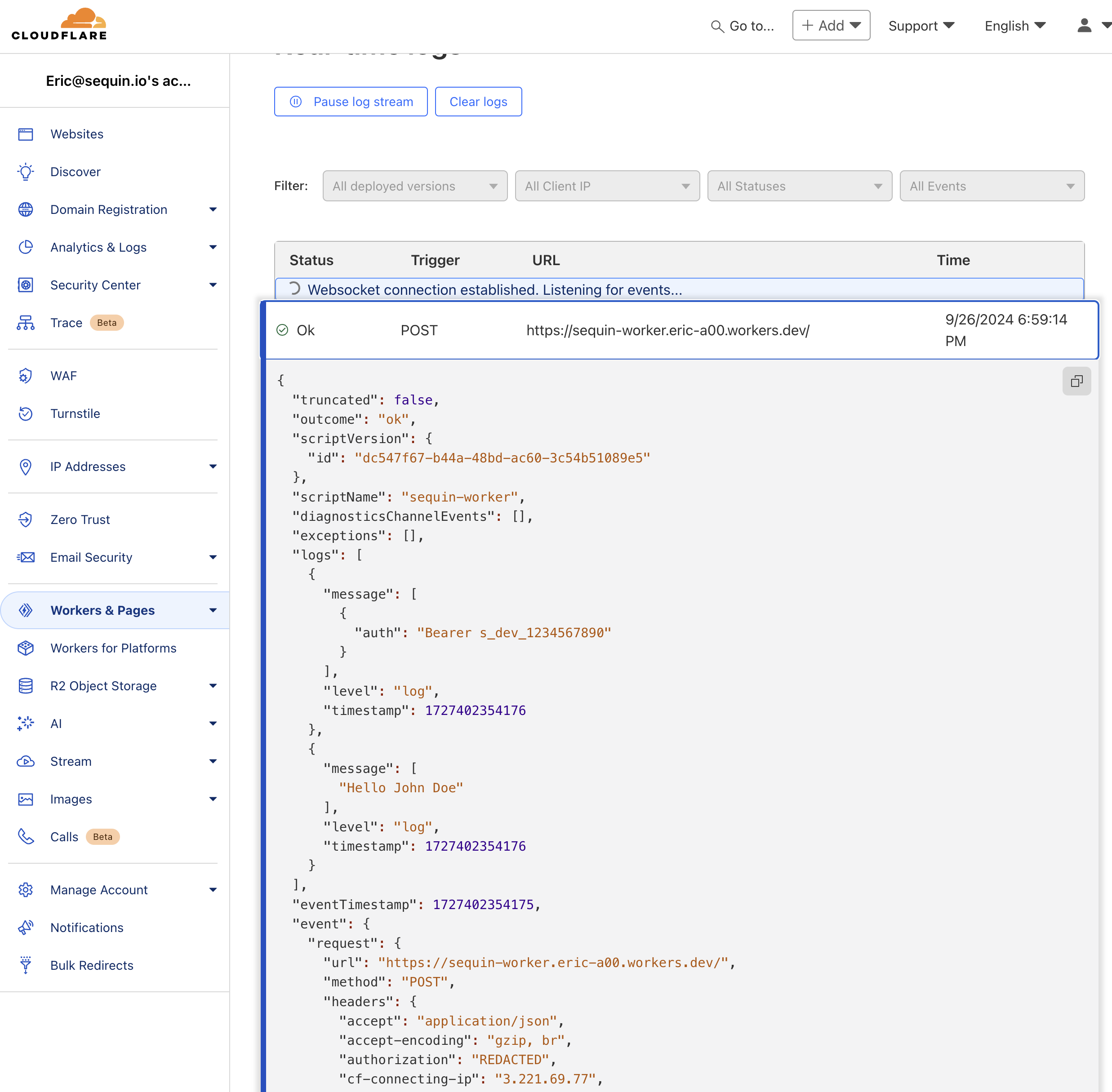 You've successfully triggered a Cloudflare Worker from a database change!
## Next steps
Modify this example to suit your needs:
* If you need to run long-running jobs, consider using [Cloudflare Durable Objects](https://developers.cloudflare.com/workers/learning/using-durable-objects/) in tandem with Workers.
* Tune your webhook sink configuration to suit your volume of work.
* Implement additional security measures, such as [Cloudflare Access](https://www.cloudflare.com/products/zero-trust/access/) for enhanced authentication and authorization.
You've successfully triggered a Cloudflare Worker from a database change!
## Next steps
Modify this example to suit your needs:
* If you need to run long-running jobs, consider using [Cloudflare Durable Objects](https://developers.cloudflare.com/workers/learning/using-durable-objects/) in tandem with Workers.
* Tune your webhook sink configuration to suit your volume of work.
* Implement additional security measures, such as [Cloudflare Access](https://www.cloudflare.com/products/zero-trust/access/) for enhanced authentication and authorization.