> ## Documentation Index
> Fetch the complete documentation index at: https://sequinstream.com/docs/llms.txt
> Use this file to discover all available pages before exploring further.
# Connecting to an AWS RDS database
> Learn how to setup a Postgres change data capture (CDC) pipeline from AWS RDS Postgres.
This guide provides step-by-step instructions to connect your [AWS RDS](https://aws.amazon.com/rds/) database to Sequin.
## Enable logical replication on RDS
By default, logical replication is not enabled on RDS. You can double check if logical replication is enabled by connecting to your database and running the following command:
```sql theme={null}
SHOW rds.logical_replication;
```
If the output is `off`, then logical replication is not enabled.
To enable it, follow these steps:
Enabling replication requires a restart of your database.
In the AWS RDS console, create a new parameter group for your database ("RDS" > "Parameter groups" > "Create parameter group"):
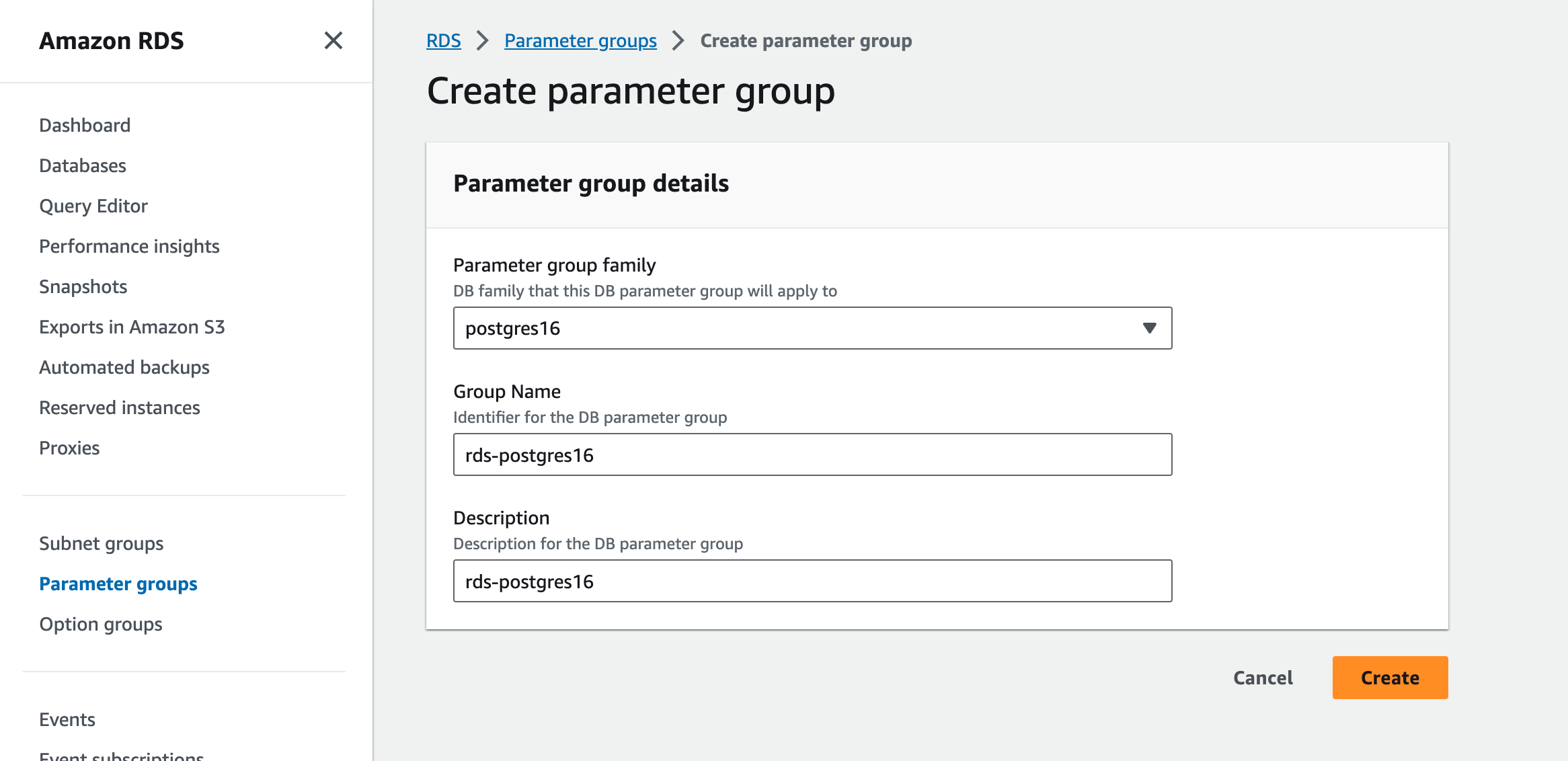 * "Parameter group family": Select your Postgres version.
* "Parameter group name": Enter a name for your parameter group.
* "Description": Optionally, enter a description for your parameter group.
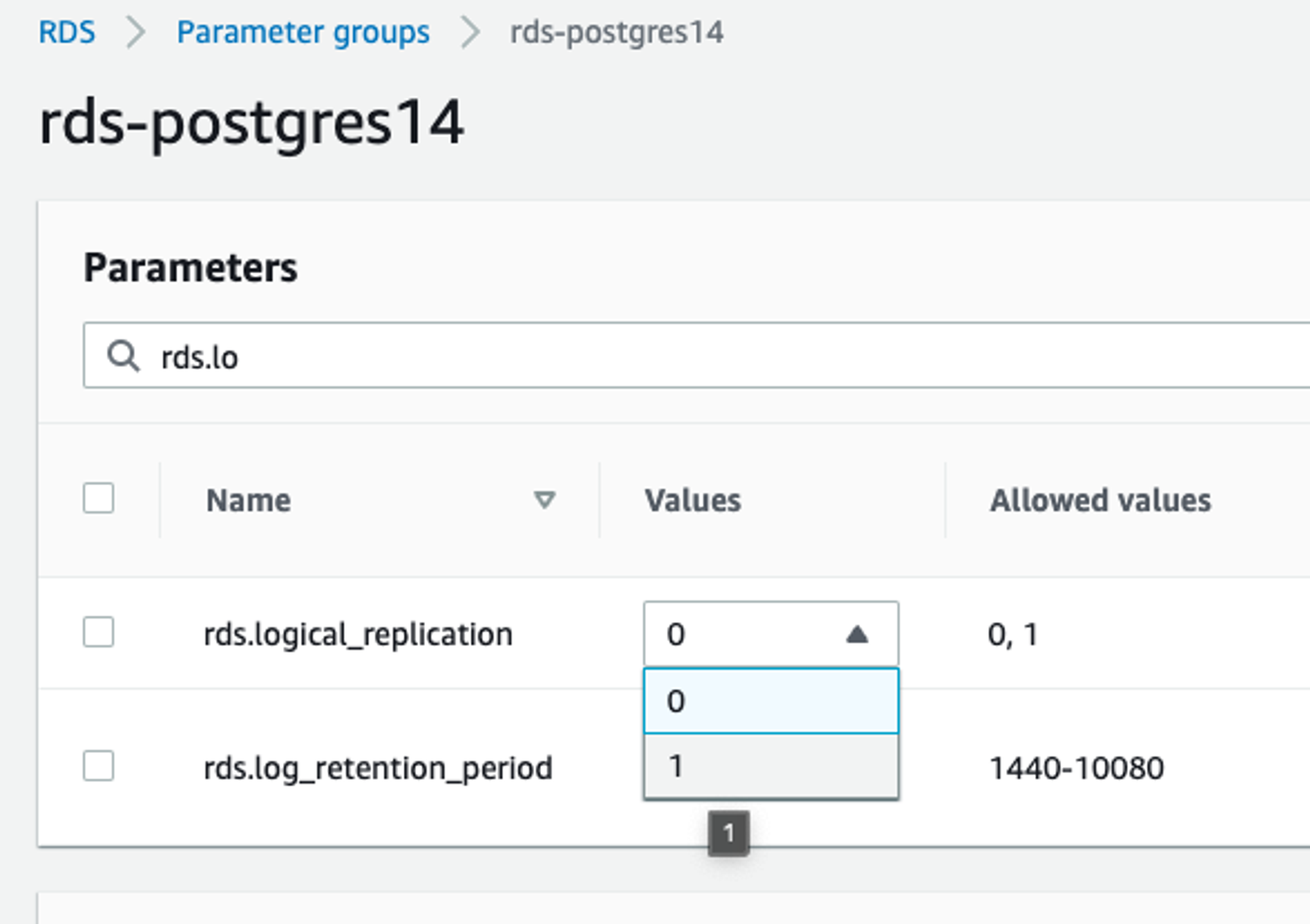
Edit the parameter group to enable logical replication by setting `rds.logical_replication` to `1`:
* "Parameter group family": Select your Postgres version.
* "Parameter group name": Enter a name for your parameter group.
* "Description": Optionally, enter a description for your parameter group.
Edit the parameter group to enable logical replication by setting `rds.logical_replication` to `1`:
 Open your database options ("RDS" > "Databases" > "Modify") and set the "DB parameter group" to the parameter group you created in the previous step. Select to "Apply immediately".
 Navigate to your database ("RDS" > "Databases") and click on your database instance. Then click on the "Actions" button and select "Reboot".
 ## Provision a Postgres user for Sequin
When in development, it's probably fine to supply Sequin with an existing user.
However, when in production, you should create a dedicated user for Sequin. The user needs the following permissions:
1. `connect` permission on the database.
2. `select` permission on all the tables you want to connect to Sequin.
3. `rds_replication` permission to read from replication slots.
Here's how to create a dedicated user with the minimum required permissions:
```sql theme={null}
-- Create user with a secure password
create user sequin_user with login password 'REPLACE_WITH_SECURE_PASSWORD';
-- Grant connect permission
grant connect on database your_database to sequin_user;
-- Grant select permission on tables you want to replicate
grant select on table table1, table2, table3 to sequin_user;
-- OR grant select on all tables in a schema
grant select on all tables in schema public to sequin_user;
-- Grant replication permission
grant rds_replication to sequin_user;
```
To generate a secure password, if you have OpenSSL installed, you can use the following command:
```bash theme={null}
openssl rand -base64 32
```
## Connect Sequin to your RDS database
After enabling logical replication on RDS, you'll now connect to your database in Sequin.
In the Sequin Console, click on the "Connect Database" button and enter the credentials for your RDS database:
* Host: Your RDS host (e.g., `mydbinstance.abcdefghijkl.us-west-2.rds.amazonaws.com`)
* Port: 5432 (default Postgres port)
* Database: Your database name
* Username: The sequin database user you created earlier
* Password: The password for your sequin database user
Make sure to enable the **SSL** option for secure connection.
Connect to your database using the SQL client of your choice and execute the following SQL query to create a publication:
```sql theme={null}
CREATE PUBLICATION sequin_pub FOR TABLE table1, table2, table3 WITH (publish_via_partition_root = true);
```
If you want to publish changes from all tables, you can use:
```sql theme={null}
CREATE PUBLICATION sequin_pub FOR ALL TABLES WITH (publish_via_partition_root = true);
```
Next, create a replication slot to capture changes from the publication:
```sql theme={null}
SELECT pg_create_logical_replication_slot('sequin_slot', 'pgoutput');
```
Back in the Sequin Console, enter the name of the replication slot (e.g. `sequin_slot`) and publication (e.g. `sequin_pub`) you just created. Then, name your database and click **Create Database**.
## Create a sink
With your AWS RDS database connected to Sequin, you are ready to create a sink. Follow one of our guides below to get started:
Send database changes to your HTTP endpoints to trigger workflows and keep services in sync
Send changes to AWS SQS queues to trigger Lambda functions and other AWS services
Stream changes to Redis Streams for real-time data processing and caching
Publish database changes to Kafka topics for event streaming and processing
Send changes to GCP Pub/Sub topics to trigger Cloud Functions and power event-driven architectures
## Provision a Postgres user for Sequin
When in development, it's probably fine to supply Sequin with an existing user.
However, when in production, you should create a dedicated user for Sequin. The user needs the following permissions:
1. `connect` permission on the database.
2. `select` permission on all the tables you want to connect to Sequin.
3. `rds_replication` permission to read from replication slots.
Here's how to create a dedicated user with the minimum required permissions:
```sql theme={null}
-- Create user with a secure password
create user sequin_user with login password 'REPLACE_WITH_SECURE_PASSWORD';
-- Grant connect permission
grant connect on database your_database to sequin_user;
-- Grant select permission on tables you want to replicate
grant select on table table1, table2, table3 to sequin_user;
-- OR grant select on all tables in a schema
grant select on all tables in schema public to sequin_user;
-- Grant replication permission
grant rds_replication to sequin_user;
```
To generate a secure password, if you have OpenSSL installed, you can use the following command:
```bash theme={null}
openssl rand -base64 32
```
## Connect Sequin to your RDS database
After enabling logical replication on RDS, you'll now connect to your database in Sequin.
In the Sequin Console, click on the "Connect Database" button and enter the credentials for your RDS database:
* Host: Your RDS host (e.g., `mydbinstance.abcdefghijkl.us-west-2.rds.amazonaws.com`)
* Port: 5432 (default Postgres port)
* Database: Your database name
* Username: The sequin database user you created earlier
* Password: The password for your sequin database user
Make sure to enable the **SSL** option for secure connection.
Connect to your database using the SQL client of your choice and execute the following SQL query to create a publication:
```sql theme={null}
CREATE PUBLICATION sequin_pub FOR TABLE table1, table2, table3 WITH (publish_via_partition_root = true);
```
If you want to publish changes from all tables, you can use:
```sql theme={null}
CREATE PUBLICATION sequin_pub FOR ALL TABLES WITH (publish_via_partition_root = true);
```
Next, create a replication slot to capture changes from the publication:
```sql theme={null}
SELECT pg_create_logical_replication_slot('sequin_slot', 'pgoutput');
```
Back in the Sequin Console, enter the name of the replication slot (e.g. `sequin_slot`) and publication (e.g. `sequin_pub`) you just created. Then, name your database and click **Create Database**.
## Create a sink
With your AWS RDS database connected to Sequin, you are ready to create a sink. Follow one of our guides below to get started:
Send database changes to your HTTP endpoints to trigger workflows and keep services in sync
Send changes to AWS SQS queues to trigger Lambda functions and other AWS services
Stream changes to Redis Streams for real-time data processing and caching
Publish database changes to Kafka topics for event streaming and processing
Send changes to GCP Pub/Sub topics to trigger Cloud Functions and power event-driven architectures