> ## Documentation Index
> Fetch the complete documentation index at: https://sequinstream.com/docs/llms.txt
> Use this file to discover all available pages before exploring further.
# How to stream Postgres changes to AWS Lambda
> Build an event‑driven pipeline that streams Postgres change data capture (CDC) events from Sequin to AWS Lambda using either SQS or SNS.
Sequin can send a JSON event for **every INSERT, UPDATE, or DELETE** in your Postgres database to **AWS Lambda** via SQS or SNS:
* **SQS queue** – Sequin *pushes* to SQS; Lambda *pulls* via an event‑source mapping.
* **SNS topic** – Sequin *publishes* to SNS; SNS *pushes* straight into Lambda.
We'll start by discussing the differences between using SQS and SNS. Then walk through the steps to create a CDC pipeline using each service.
With your Postgres data streaming to Lambdas, you can:
* Trigger downstream workflows (for example, send a Slack message or transactional email the moment a row is inserted).
* Keep an external cache or search index (Redis, OpenSearch, Algolia) in‑sync with Postgres updates. (When Sequin's native sinks don't meet your needs.)
* Fan‑out enriched CDC events to micro‑services that don't have direct database access.
* Feed real‑time analytics pipelines (Kinesis, Firehose, Redshift) without complex ETL jobs.
* Detect anomalies in critical tables and raise alerts within seconds.
## Architecture overview
1. Sequin captures logical replication changes from Postgres.
2. Changes are delivered to SQS or SNS (your chosen sink).
3. AWS Lambda consumes the events—either by polling a queue (SQS) or by receiving pushes (SNS).
4. Your Lambda code processes the payload (e.g., triggers workflows, updates downstream systems).
## SQS vs SNS at a glance
| | **SQS** | **SNS** |
| ------------------- | ----------------------------------------- | --------------------------- |
| Delivery model | Lambda polls queue | SNS pushes message |
| Message retention | Up to **14 days** + Dead‑Letter Queue | **\~24 hours** retry window |
| Concurrency control | Batch size & queue depth | One invocation per publish |
| Fan‑out | One consumer per queue (clone to fan‑out) | Native multi‑subscriber |
| Ordering support | FIFO queues | None |
| Ideal when | Durable, single consumer | Low‑latency, multi consumer |
We generally recommend **SQS** if you need:
* **Ordering**: You can use Sequin with an SQS FIFO queue to receive messages in order. For example, if a row is inserted than updated, an SQS FIFO queue will ensure your Lambdas process the insert before the update.
* **Batching**: SQS allows your Lambda to receive batches of messages. You might prefer batching if your Lambda is sending messages to another system, as batching can improve throughput.
However, choose **SNS** when you want the simplest, lowest‑latency fan‑out: SNS pushes each message directly to Lambda (no polling) and can deliver the same event to multiple subscribers at once. There's no queue to manage, retries are handled automatically, and the operational overhead is lower than SQS for many‑consumer, push‑based workloads.
***
# Prerequisites
If you're **self‑hosting** Sequin:
1. [Sequin installed](/running-sequin)
2. [A database connected](/connect-postgres)
Additionally:
* Permissions in AWS to manage SQS/SNS and Lambda resources.
***
# Option A – SQS queue
## 1. Create or pick a queue
Navigate to AWS → SQS → "Create queue".
Select "Standard" or "FIFO" (ordered). Most Sequin users choose "FIFO", as usually you want to process Postgres [changes in order](/reference/sinks/overview#message-grouping-and-ordering).
Give the queue a name (e.g. `postgres-events.fifo`). Leave defaults unless you need custom retention or DLQ.
After creation, note the Queue URL and ARN. You'll need these in a moment.
## 2. Grant Sequin permission
Navigate to AWS → IAM → "Users" → "Create user".
Name the user (e.g. `sequin-sqs-publisher`) and click "Next".
Select "Attach policies directly", then create an inline policy with the following JSON (replace the Resource ARN with your actual queue ARN):
```json theme={null}
{
"Version": "2012-10-17",
"Statement": [
{
"Effect": "Allow",
"Action": [
"sqs:SendMessage",
"sqs:SendMessageBatch",
"sqs:GetQueueAttributes"
],
"Resource": "arn:aws:sqs:us-east-1:123456789012:postgres-events"
}
]
}
```
After creating the user, go to the "Security credentials" tab and create an access key for programmatic access.
Store the Access key ID and Secret access key—you'll paste them into Sequin next.
## 3. Create an SQS sink in Sequin
In the Sequin console click "+ Create Sink" → "SQS".
Paste the **Queue URL**, **Access key ID**, and **Secret key**.
You can optionally configure settings like filters and backfills. For more detail on these settings, see the [general setup guide for SQS](/how-to/stream-postgres-to-sqs#configure-the-source).
Sequin also lets you write custom [transform functions](/reference/transforms) to modify the payload before it's sent to SQS. Use a transform if you want your Lambda function to receive a certain shape.
Click "Create sink". Sequin starts streaming changes immediately.
## 4. Verify messages are being sent to SQS (optional)
Before proceeding to set up the Lambda consumer, it's a good idea to verify that messages are being delivered to your SQS queue:
1. Make some changes in your Postgres database (e.g., `insert into users(name) values ('test_user');`). (If you had Sequin perform an initial backfill, you can skip this step.)
2. In the Sequin console, navigate to your SQS sink and check the "Messages" tab. You should see the changes listed with "Delivered" status.
3. In the AWS Console, navigate to SQS → Your queue. In the graphs, you should see a spike in messages received.
4. If messages aren't appearing, check the sink's status in Sequin (any error messages?)
Once you've confirmed messages are flowing to SQS, you're ready to connect Lambda as a consumer.
## 5. Connect Lambda to the queue
In AWS → Lambda → "Create function", pick "Author from scratch", name it `cdc‑processor`, and choose your runtime (Node 18 in examples below).
Click "Create function".
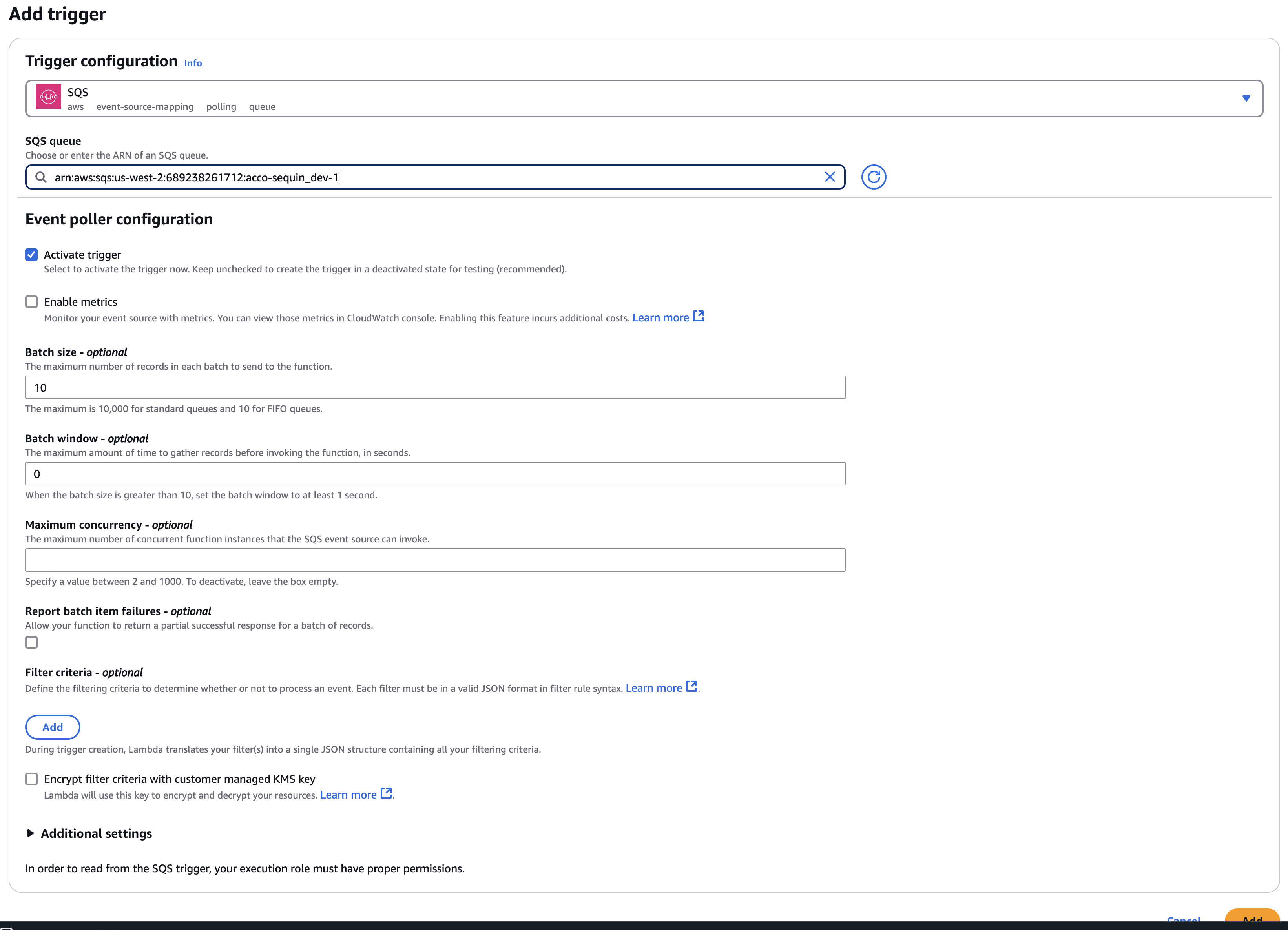
On the "Function overview" page, click "+ Add trigger" and select "SQS".
Under "SQS queue", select the queue you created in Sequin.
Under "Event source mapping configuration", you can leave "Active trigger" checked if you're OK with your Lambda function receiving messages from Sequin right away.
Choose a reasonable "Batch size". If each message your Lambda will process needs to be processed individually, you might consider a batch size of 1 (e.g. the Lambda will trigger a side effect for each message). If your Lambda will be forwarding messages in a batch to another system, you might consider a larger batch size for higher throughput.
Under "Maximum concurrency", optionally cap the number of concurrent messages your Lambda function will process. It might be best to leave this uncapped, so that your Lambdas can scale up to handle a burst of messages (after, for example, a backfill from Sequin or a large update to a table).
Click "Add".
 ## 6. Handle events in your function
If you didn't specify a transform, refer to the [messages reference](/reference/messages) for details on the default payload you'll receive:
```javascript theme={null}
// cdc-processor/index.js
export const handler = async (event) => {
for (const record of event.Records) {
const change = JSON.parse(record.body);
/* {
record: {
id: 1,
name: "alice"
},
changes: null,
action: "insert",
metadata: {
table_schema: "public",
table_name: "users",
commit_timestamp: "2024-03-21T15:30:00.127470Z",
commit_lsn: 123456789,
commit_idx: 1,
database_name: "myapp-prod",
consumer: {
id: "f47ac10b-58cc-4372-a567-0e02b2c3d479",
name: "users_sqs",
annotations: {"my-custom-key": "my-custom-value"}
},
database: {
id: "12345678-9abc-def0-1234-56789abcdef0",
name: "myapp-prod",
annotations: {"my-custom-key": "my-custom-value"},
database: "myapp-prod",
hostname: "db.example.com"
}
}
} */
console.log(change);
}
};
```
## 7. Test the pipeline
1. Insert a row in Postgres (`INSERT INTO users(name) VALUES ('alice');`).
2. In Sequin, you should see "Processed messages" increase. The message should also be shown as "Delivered" in the "Messages" tab.
3. In CloudWatch → Logs → "Log groups" locate `/aws/lambda/postgres-processor` and confirm the event appears.
If Sequin shows the message as "Delivered", that means that the message made it to the SQS queue.
If you're not seeing logs for your Lambda function in CloudWatch, it means that the message is not reaching your Lambda function. Be sure that the SQS trigger (event‑source mapping) on your function is **Enabled**, that the Lambda execution role has `sqs:ReceiveMessage` permission, and that any batch‑size or reserved‑concurrency limits aren't blocking the invocation.
***
# Option B – SNS topic
## 1. Create or pick a topic
Navigate to AWS → SNS → "Topics" → "Create topic".
Select "Standard" for most use cases. ("FIFO" topics are not directly compatible with Lambda subscriptions - they can only deliver to SQS FIFO queues.)
Give the topic a name (e.g. `postgres-events`). Leave defaults unless you need custom message retention.
After creation, note the Topic ARN. You'll need this in a moment.
## 2. Create Lambda function
In AWS → Lambda → "Create function", pick "Author from scratch", name it `cdc-processor`, and choose your runtime (Node 18 in examples below).
Click "Create function".
In the code editor, paste the following Lambda handler (or your own version):
```javascript theme={null}
// cdc-processor/index.js
export const handler = async (event) => {
for (const record of event.Records) {
const change = JSON.parse(record.Sns.Message);
/* {
record: {
id: 1,
name: "alice"
},
changes: null,
action: "insert",
metadata: {
table_schema: "public",
table_name: "users",
commit_timestamp: "2024-03-21T15:30:00.127470Z",
commit_lsn: 123456789,
commit_idx: 1,
database_name: "myapp-prod",
consumer: {
id: "f47ac10b-58cc-4372-a567-0e02b2c3d479",
name: "users_sns",
annotations: {}
},
database: {
id: "12345678-9abc-def0-1234-56789abcdef0",
name: "myapp-prod",
annotations: {},
database: "myapp-prod",
hostname: "db.example.com"
}
}
} */
console.log(change);
}
};
```
SNS wraps the CDC payload inside `event.Records[*].Sns.Message` as a string, so you'll need to parse it as shown above.
Lambda needs permission to receive messages from SNS. In the Lambda's execution role, ensure it has the `sns:Receive` and `sns:Subscribe` permissions for your topic.
## 3. Subscribe Lambda to the topic
On the Lambda detail page:
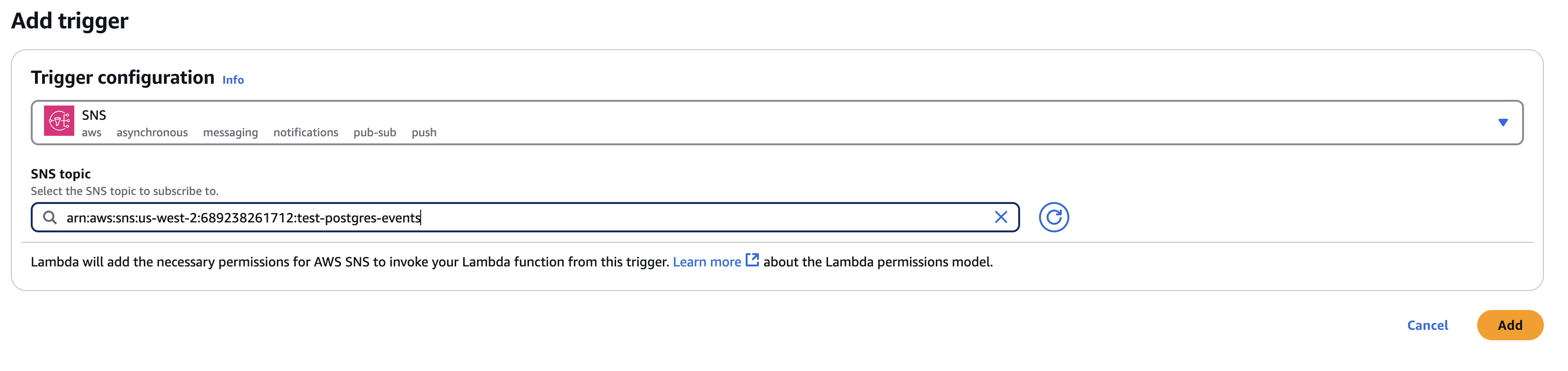
1. Click "Add trigger"
2. Select "SNS" from the trigger dropdown
3. Select your topic
4. Click "Add"
## 6. Handle events in your function
If you didn't specify a transform, refer to the [messages reference](/reference/messages) for details on the default payload you'll receive:
```javascript theme={null}
// cdc-processor/index.js
export const handler = async (event) => {
for (const record of event.Records) {
const change = JSON.parse(record.body);
/* {
record: {
id: 1,
name: "alice"
},
changes: null,
action: "insert",
metadata: {
table_schema: "public",
table_name: "users",
commit_timestamp: "2024-03-21T15:30:00.127470Z",
commit_lsn: 123456789,
commit_idx: 1,
database_name: "myapp-prod",
consumer: {
id: "f47ac10b-58cc-4372-a567-0e02b2c3d479",
name: "users_sqs",
annotations: {"my-custom-key": "my-custom-value"}
},
database: {
id: "12345678-9abc-def0-1234-56789abcdef0",
name: "myapp-prod",
annotations: {"my-custom-key": "my-custom-value"},
database: "myapp-prod",
hostname: "db.example.com"
}
}
} */
console.log(change);
}
};
```
## 7. Test the pipeline
1. Insert a row in Postgres (`INSERT INTO users(name) VALUES ('alice');`).
2. In Sequin, you should see "Processed messages" increase. The message should also be shown as "Delivered" in the "Messages" tab.
3. In CloudWatch → Logs → "Log groups" locate `/aws/lambda/postgres-processor` and confirm the event appears.
If Sequin shows the message as "Delivered", that means that the message made it to the SQS queue.
If you're not seeing logs for your Lambda function in CloudWatch, it means that the message is not reaching your Lambda function. Be sure that the SQS trigger (event‑source mapping) on your function is **Enabled**, that the Lambda execution role has `sqs:ReceiveMessage` permission, and that any batch‑size or reserved‑concurrency limits aren't blocking the invocation.
***
# Option B – SNS topic
## 1. Create or pick a topic
Navigate to AWS → SNS → "Topics" → "Create topic".
Select "Standard" for most use cases. ("FIFO" topics are not directly compatible with Lambda subscriptions - they can only deliver to SQS FIFO queues.)
Give the topic a name (e.g. `postgres-events`). Leave defaults unless you need custom message retention.
After creation, note the Topic ARN. You'll need this in a moment.
## 2. Create Lambda function
In AWS → Lambda → "Create function", pick "Author from scratch", name it `cdc-processor`, and choose your runtime (Node 18 in examples below).
Click "Create function".
In the code editor, paste the following Lambda handler (or your own version):
```javascript theme={null}
// cdc-processor/index.js
export const handler = async (event) => {
for (const record of event.Records) {
const change = JSON.parse(record.Sns.Message);
/* {
record: {
id: 1,
name: "alice"
},
changes: null,
action: "insert",
metadata: {
table_schema: "public",
table_name: "users",
commit_timestamp: "2024-03-21T15:30:00.127470Z",
commit_lsn: 123456789,
commit_idx: 1,
database_name: "myapp-prod",
consumer: {
id: "f47ac10b-58cc-4372-a567-0e02b2c3d479",
name: "users_sns",
annotations: {}
},
database: {
id: "12345678-9abc-def0-1234-56789abcdef0",
name: "myapp-prod",
annotations: {},
database: "myapp-prod",
hostname: "db.example.com"
}
}
} */
console.log(change);
}
};
```
SNS wraps the CDC payload inside `event.Records[*].Sns.Message` as a string, so you'll need to parse it as shown above.
Lambda needs permission to receive messages from SNS. In the Lambda's execution role, ensure it has the `sns:Receive` and `sns:Subscribe` permissions for your topic.
## 3. Subscribe Lambda to the topic
On the Lambda detail page:
1. Click "Add trigger"
2. Select "SNS" from the trigger dropdown
3. Select your topic
4. Click "Add"
 ## 4. Grant Sequin permission
Navigate to AWS → IAM → "Users" → "Create user".
Name the user (e.g. `sequin-sns-publisher`) and click "Next".
Select "Attach policies directly", then create an inline policy with the following JSON (replace the Resource ARN with your actual topic ARN):
```json theme={null}
{
"Version": "2012-10-17",
"Statement": [
{
"Effect": "Allow",
"Action": [
"sns:Publish",
"sns:PublishBatch",
"sns:GetTopicAttributes"
],
"Resource": "arn:aws:sns:us-east-1:123456789012:postgres-events"
}
]
}
```
After creating the user, go to the "Security credentials" tab and create an access key for programmatic access.
Store the Access key ID and Secret access key—you'll paste them into Sequin next.
## 5. Create an SNS sink in Sequin
In the Sequin console click "+ Create Sink" → "SNS".
Paste the Topic ARN, Access key ID, and Secret access key.
You can optionally configure settings like filters and backfills. For more detail on these settings, see the [general setup guide for SNS](/how-to/stream-postgres-to-sns#configure-the-source).
Sequin also lets you write custom [transform functions](/reference/transforms) to modify the payload before it's sent to SNS. Use a transform if you want your Lambda function to receive a certain shape.
Click "Create sink". Sequin starts streaming changes immediately.
## 6. Test the pipeline
1. Insert a row in Postgres (`insert into users(name) values ('alice');`).
2. In Sequin, you should see "Processed messages" increase. The message should also be shown as "Delivered" in the "Messages" tab.
3. In CloudWatch → Logs → "log groups" locate `/aws/lambda/cdc-processor` and confirm the event appears.
If Sequin shows the message as "Delivered", that means that the message made it to the SNS topic. If you're not seeing logs for your Lambda function in CloudWatch, check that:
* The subscription between SNS and Lambda is properly configured and active
* The Lambda execution role has permissions to receive messages from SNS
* SNS delivery status notifications aren't reporting failures (check SNS → Topics → your topic → "Subscriptions")
***
# Verify & monitor
1. **Sink dashboard** – In Sequin, open the sink and watch the "Messages" tab for latest deliveries.
2. **SNS delivery status** – In the SNS console, you can enable delivery status logging to CloudWatch to track message delivery.
3. **CloudWatch metrics** – Monitor Lambda duration, error count, and SNS delivery metrics.
4. **CloudWatch Alarms** – Set up alarms for delivery failures and Lambda errors to catch issues early.
***
# Maintenance & troubleshooting
* **Schema changes** – When your database schema changes, your Lambda code may need updates to handle new or removed fields.
* **Message filtering** – Use [SNS message filtering](https://docs.aws.amazon.com/sns/latest/dg/sns-message-filtering.html) or Sequin's [filters](/reference/filters) to reduce noise.
* **Backfills** – Use Sequin's "Backfill" feature to send existing rows to your topic when adding new consumers or recreating a Lambda.
***
# Next steps
Complete guide for setting up SQS sinks with Sequin.
Complete guide for setting up SNS topics with Sequin.
Send only the changes that matter to your Lambda functions.
Reshape data before it reaches your Lambda consumers.
## 4. Grant Sequin permission
Navigate to AWS → IAM → "Users" → "Create user".
Name the user (e.g. `sequin-sns-publisher`) and click "Next".
Select "Attach policies directly", then create an inline policy with the following JSON (replace the Resource ARN with your actual topic ARN):
```json theme={null}
{
"Version": "2012-10-17",
"Statement": [
{
"Effect": "Allow",
"Action": [
"sns:Publish",
"sns:PublishBatch",
"sns:GetTopicAttributes"
],
"Resource": "arn:aws:sns:us-east-1:123456789012:postgres-events"
}
]
}
```
After creating the user, go to the "Security credentials" tab and create an access key for programmatic access.
Store the Access key ID and Secret access key—you'll paste them into Sequin next.
## 5. Create an SNS sink in Sequin
In the Sequin console click "+ Create Sink" → "SNS".
Paste the Topic ARN, Access key ID, and Secret access key.
You can optionally configure settings like filters and backfills. For more detail on these settings, see the [general setup guide for SNS](/how-to/stream-postgres-to-sns#configure-the-source).
Sequin also lets you write custom [transform functions](/reference/transforms) to modify the payload before it's sent to SNS. Use a transform if you want your Lambda function to receive a certain shape.
Click "Create sink". Sequin starts streaming changes immediately.
## 6. Test the pipeline
1. Insert a row in Postgres (`insert into users(name) values ('alice');`).
2. In Sequin, you should see "Processed messages" increase. The message should also be shown as "Delivered" in the "Messages" tab.
3. In CloudWatch → Logs → "log groups" locate `/aws/lambda/cdc-processor` and confirm the event appears.
If Sequin shows the message as "Delivered", that means that the message made it to the SNS topic. If you're not seeing logs for your Lambda function in CloudWatch, check that:
* The subscription between SNS and Lambda is properly configured and active
* The Lambda execution role has permissions to receive messages from SNS
* SNS delivery status notifications aren't reporting failures (check SNS → Topics → your topic → "Subscriptions")
***
# Verify & monitor
1. **Sink dashboard** – In Sequin, open the sink and watch the "Messages" tab for latest deliveries.
2. **SNS delivery status** – In the SNS console, you can enable delivery status logging to CloudWatch to track message delivery.
3. **CloudWatch metrics** – Monitor Lambda duration, error count, and SNS delivery metrics.
4. **CloudWatch Alarms** – Set up alarms for delivery failures and Lambda errors to catch issues early.
***
# Maintenance & troubleshooting
* **Schema changes** – When your database schema changes, your Lambda code may need updates to handle new or removed fields.
* **Message filtering** – Use [SNS message filtering](https://docs.aws.amazon.com/sns/latest/dg/sns-message-filtering.html) or Sequin's [filters](/reference/filters) to reduce noise.
* **Backfills** – Use Sequin's "Backfill" feature to send existing rows to your topic when adding new consumers or recreating a Lambda.
***
# Next steps
Complete guide for setting up SQS sinks with Sequin.
Complete guide for setting up SNS topics with Sequin.
Send only the changes that matter to your Lambda functions.
Reshape data before it reaches your Lambda consumers.