> ## Documentation Index
> Fetch the complete documentation index at: https://sequinstream.com/docs/llms.txt
> Use this file to discover all available pages before exploring further.
# Get started with Elasticsearch
> Learn how to create real-time Elasticsearch indexes from Postgres changes in minutes using Sequin.
In this quickstart, you'll create a real‑time data pipeline that streams changes from a Postgres database into an Elasticsearch index.
You'll:
* Boot Sequin
* Connect to a sample playground database
* Start a local Elasticsearch + Kibana stack
* Create an Elasticsearch index
* Create a Sequin sink from Postgres to Elasticsearch
* Watch your data flow in real‑time
By the end, you'll have hands-on experience setting up Postgres change data capture (CDC) with Sequin and Elasticsearch.
This is the quickstart for streaming Postgres to Elasticsearch. See the [how-to guide](/how-to/stream-postgres-to-elasticsearch) for an explanation of how to use the Elasticsearch sink or the [reference](/reference/sinks/elasticsearch) for details on all configuration options.
The easiest way to get started with Sequin is with our [Docker Compose file](https://github.com/sequinstream/sequin/blob/main/docker/docker-compose.yaml). This file starts a Postgres database, Redis instance, and Sequin server.
1. Download [sequin-docker-compose.zip](https://github.com/sequinstream/sequin/releases/latest/download/sequin-docker-compose.zip).
2. Unzip the file.
3. Navigate to the unzipped directory and start the services:
```bash theme={null}
cd sequin-docker-compose && docker compose up -d
```
```bash theme={null}
curl -L https://github.com/sequinstream/sequin/releases/latest/download/sequin-docker-compose.zip -o sequin-docker-compose.zip \
&& unzip sequin-docker-compose.zip && rm sequin-docker-compose.zip
cd sequin-docker-compose && docker compose up -d
```
```bash theme={null}
git clone git@github.com:sequinstream/sequin.git
cd sequin/docker
docker compose up -d
```
Check that Sequin is running using `docker ps`:
```bash theme={null}
docker ps
```
You should see output like the following:
```
CONTAINER ID IMAGE COMMAND CREATED STATUS PORTS NAMES
bd5c458cabde sequin/sequin:latest "/scripts/start_comm…" 11 seconds ago Up 9 seconds 4000/tcp, 0.0.0.0:7376->7376/tcp sequin-sequin-1
3bacd89765e7 grafana/grafana "/run.sh" 11 seconds ago Up 11 seconds 0.0.0.0:3000->3000/tcp sequin-sequin_grafana-1
3ad41319a66c postgres:16 "docker-entrypoint.s…" 11 seconds ago Up 11 seconds (healthy) 0.0.0.0:7377->5432/tcp sequin-sequin_postgres-1
6139a5fc4e80 redis:7 "docker-entrypoint.s…" 11 seconds ago Up 11 seconds 0.0.0.0:7378->6379/tcp sequin-sequin_redis-1
7e07a5b052de prom/prometheus "/bin/prometheus --c…" 11 seconds ago Up 11 seconds 0.0.0.0:9090->9090/tcp sequin-sequin_prometheus-1
```
Sequin, Postgres, Redis, Prometheus, and Grafana should be up and running (status: `Up`).
The Docker Compose file automatically configures Sequin with an admin user and a playground database.
Let's log in to the Sequin web console:
After starting the Docker Compose services, open the Sequin web console at [http://localhost:7376](http://localhost:7376):
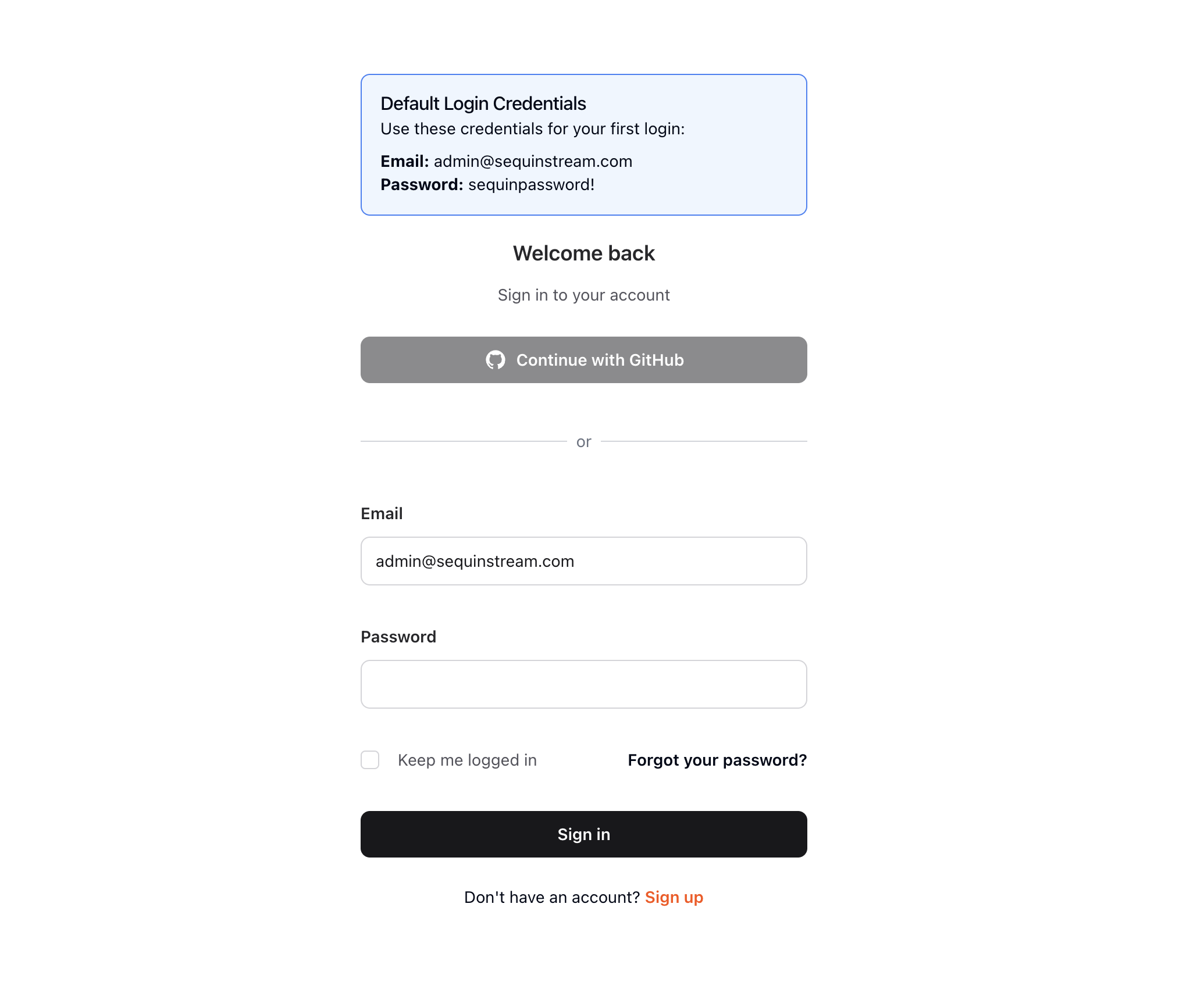 Use the following default credentials to login:
* Email:
```
admin@sequinstream.com
```
* Password:
```
sequinpassword!
```
To get you started quickly, Sequin's Docker Compose file creates a logical database called `sequin_playground` with a sample dataset in the `public.products` table.
Let's take a look:
In the Sequin web console, click **Databases** in the sidebar.
Click on the pre-configured `sequin-playground` database:
Use the following default credentials to login:
* Email:
```
admin@sequinstream.com
```
* Password:
```
sequinpassword!
```
To get you started quickly, Sequin's Docker Compose file creates a logical database called `sequin_playground` with a sample dataset in the `public.products` table.
Let's take a look:
In the Sequin web console, click **Databases** in the sidebar.
Click on the pre-configured `sequin-playground` database:
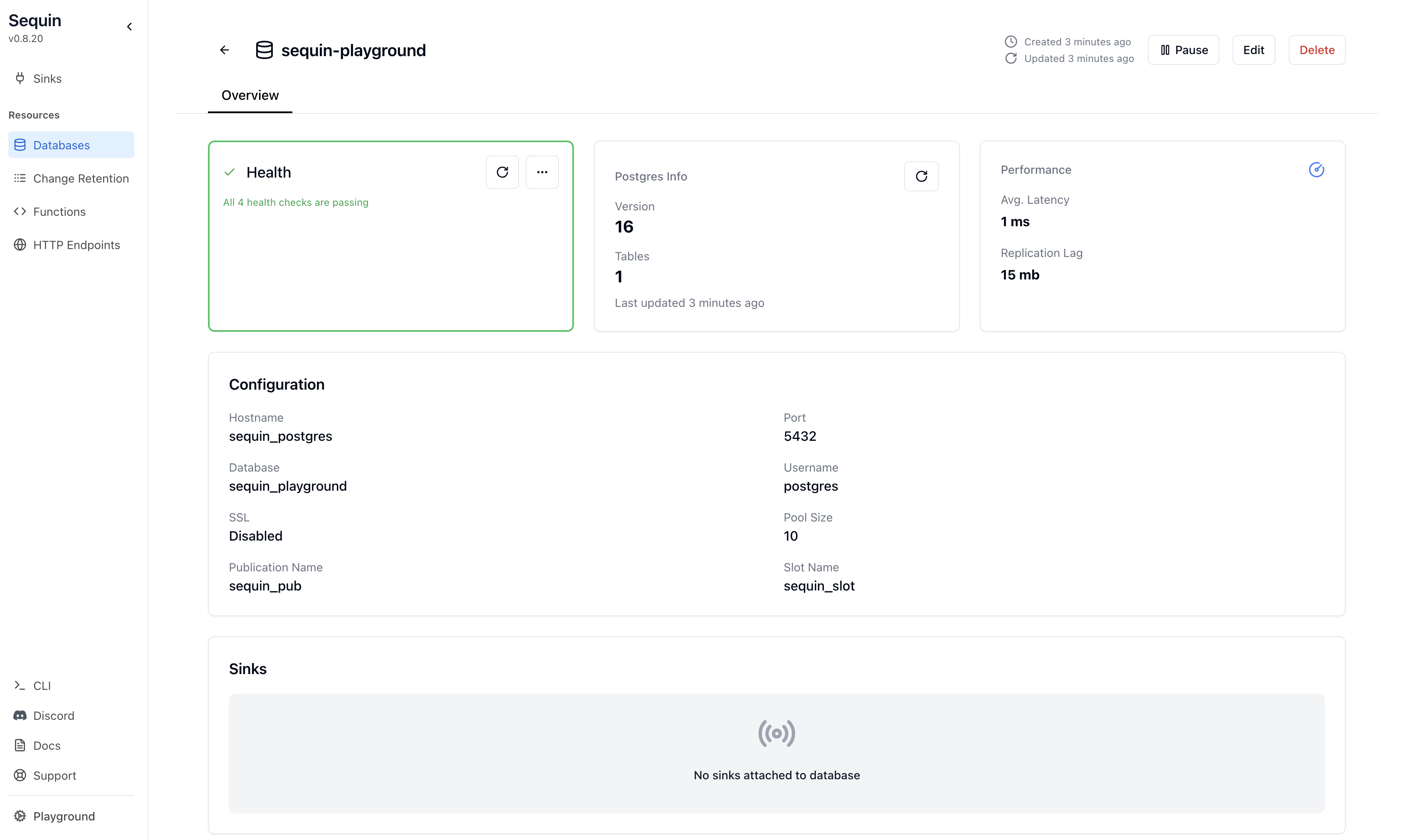 The database "Health" should be green.
Let's get a sense of what's in the `products` table. Run the following command:
```bash theme={null}
docker exec -i sequin-sequin_postgres-1 \
psql -U postgres -d sequin_playground -c \
"select id, name, price from products;"
```
This command connects to the running Postgres container and runs a `psql` command.
You should see a list of the rows in the `products` table:
```
id | name | price
----+-----------------------+-------
1 | Avocados (3 pack) | 5.99
2 | Flank Steak (1 lb) | 8.99
3 | Salmon Fillet (12 oz) | 14.99
4 | Baby Spinach (16 oz) | 4.99
5 | Sourdough Bread | 6.99
6 | Blueberries (6 oz) | 3.99
(6 rows)
```
We'll make modifications to this table in a bit.
We'll run Elasticsearch locally with Docker using Elastic's *start‑local* helper script.
```bash theme={null}
# Download and run the helper script (≈ 1–2 minutes)
curl -fsSL https://elastic.co/start-local | sh
```
The script:
* Downloads the Elasticsearch & Kibana images
* Generates credentials
* Starts both services via docker‑compose
When the script finishes you'll see output like:
```text theme={null}
🎉 Congrats, Elasticsearch and Kibana are installed and running in Docker!
🌐 Open your browser at http://localhost:5601
Username: elastic
Password:
🔌 Elasticsearch API endpoint: http://localhost:9200
🔑 API key:
```
Copy the **API key** and **API endpoint URL** – you'll need them when configuring the sink.
Next create the `products` index that will receive documents.
```bash theme={null}
curl -X PUT "http://localhost:9200/products" \
-H "Authorization: ApiKey " \
-H "Content-Type: application/json" \
-d '{
"settings": {
"number_of_shards": 1,
"number_of_replicas": 0
}
}'
```
Make sure to replace `` with the API key you copied earlier.
You should receive:
```json theme={null}
{"acknowledged": true, "shards_acknowledged": true, "index": "products"}
```
With the playground database connected and the index created, you're ready to add a [sink](/reference/sinks/overview) that pushes changes to Elasticsearch.
Click **Sinks** in the sidebar, then **Create Sink**.
Choose **Elasticsearch** and click **Continue**.
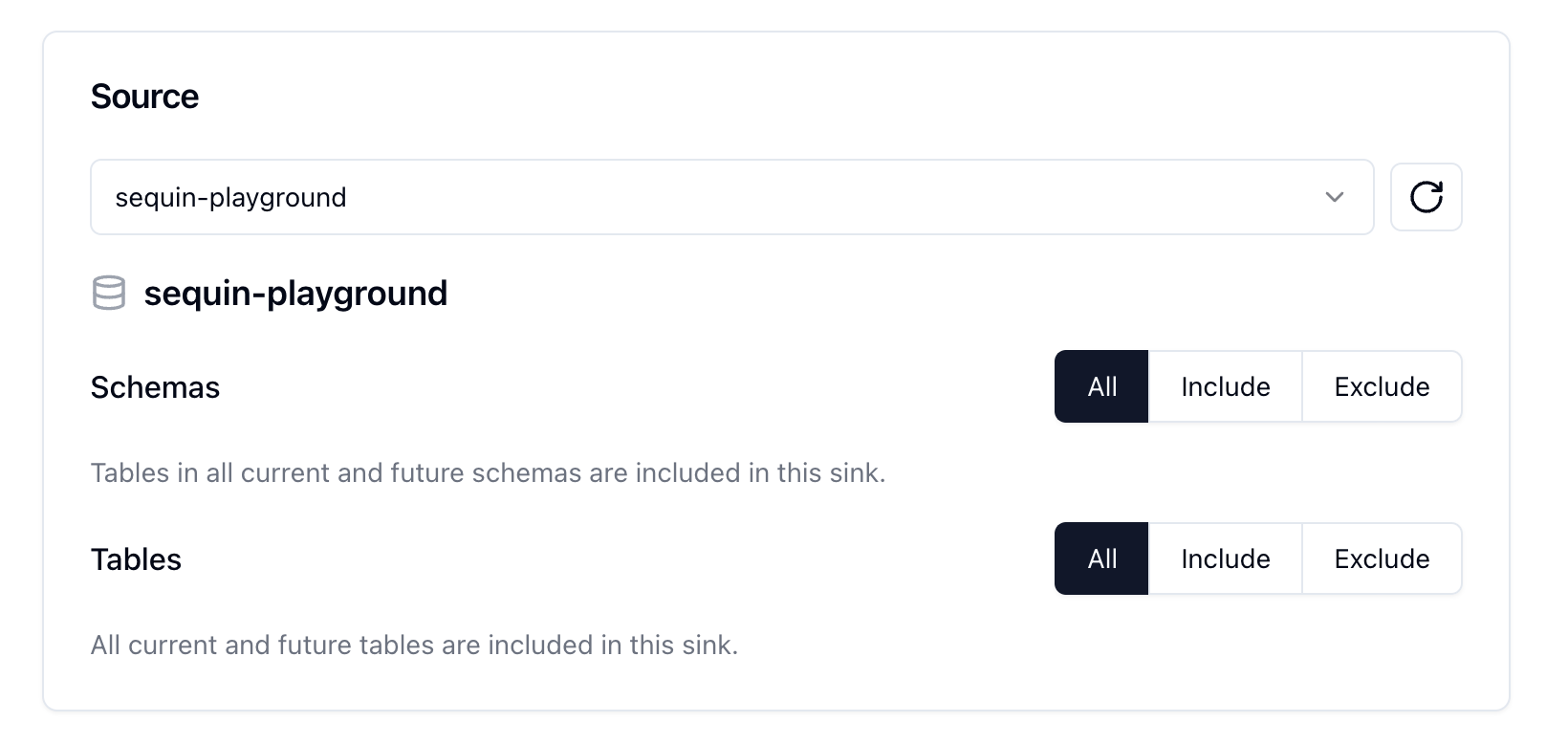
In the **Source** card you'll see the `sequin_playground` database and the `products` table pre‑selected. Leave the defaults.
The database "Health" should be green.
Let's get a sense of what's in the `products` table. Run the following command:
```bash theme={null}
docker exec -i sequin-sequin_postgres-1 \
psql -U postgres -d sequin_playground -c \
"select id, name, price from products;"
```
This command connects to the running Postgres container and runs a `psql` command.
You should see a list of the rows in the `products` table:
```
id | name | price
----+-----------------------+-------
1 | Avocados (3 pack) | 5.99
2 | Flank Steak (1 lb) | 8.99
3 | Salmon Fillet (12 oz) | 14.99
4 | Baby Spinach (16 oz) | 4.99
5 | Sourdough Bread | 6.99
6 | Blueberries (6 oz) | 3.99
(6 rows)
```
We'll make modifications to this table in a bit.
We'll run Elasticsearch locally with Docker using Elastic's *start‑local* helper script.
```bash theme={null}
# Download and run the helper script (≈ 1–2 minutes)
curl -fsSL https://elastic.co/start-local | sh
```
The script:
* Downloads the Elasticsearch & Kibana images
* Generates credentials
* Starts both services via docker‑compose
When the script finishes you'll see output like:
```text theme={null}
🎉 Congrats, Elasticsearch and Kibana are installed and running in Docker!
🌐 Open your browser at http://localhost:5601
Username: elastic
Password:
🔌 Elasticsearch API endpoint: http://localhost:9200
🔑 API key:
```
Copy the **API key** and **API endpoint URL** – you'll need them when configuring the sink.
Next create the `products` index that will receive documents.
```bash theme={null}
curl -X PUT "http://localhost:9200/products" \
-H "Authorization: ApiKey " \
-H "Content-Type: application/json" \
-d '{
"settings": {
"number_of_shards": 1,
"number_of_replicas": 0
}
}'
```
Make sure to replace `` with the API key you copied earlier.
You should receive:
```json theme={null}
{"acknowledged": true, "shards_acknowledged": true, "index": "products"}
```
With the playground database connected and the index created, you're ready to add a [sink](/reference/sinks/overview) that pushes changes to Elasticsearch.
Click **Sinks** in the sidebar, then **Create Sink**.
Choose **Elasticsearch** and click **Continue**.
In the **Source** card you'll see the `sequin_playground` database and the `products` table pre‑selected. Leave the defaults.
 Open the **Transform** card, click **+ Create new transform** and use the following Elixir function in a [Transform function](/reference/transforms#function-transform):
```elixir theme={null}
def transform(action, record, changes, metadata) do
Map.take(record, ["id", "name", "price"])
end
```
Name the transform `products-elasticsearch` and click **Create transform**.
Navigate back to the **Sinks** tab and select the transform you just created.
If you don't see the transform you just created, click the refresh button.
Open **Initial backfill** and choose **Backfill all rows** so the existing data is loaded into Elasticsearch as soon as the sink is created.
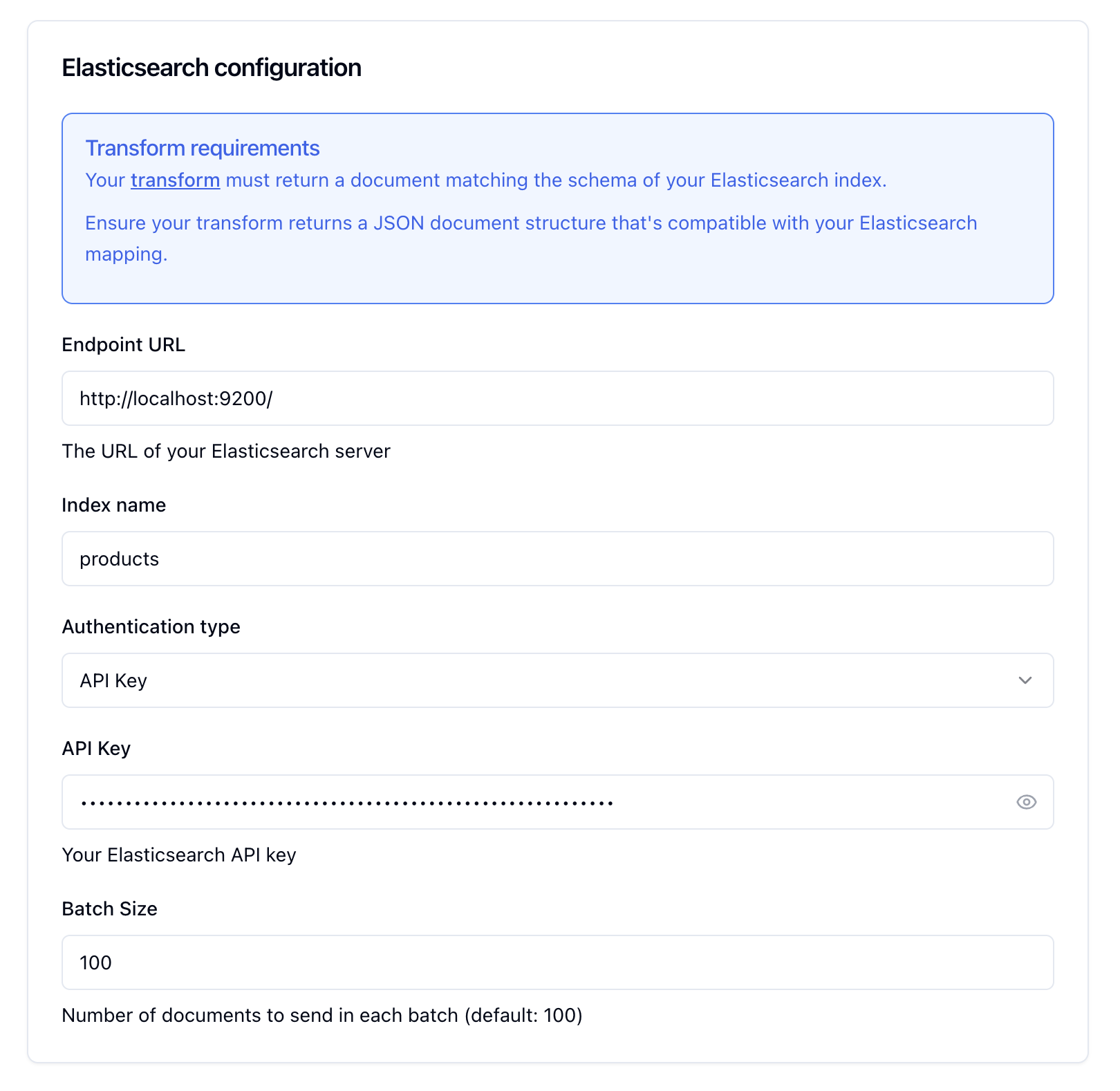
In the **Elasticsearch** card enter:
* Endpoint URL: `http://host.docker.internal:9200`
* Index name: `products`
* Authentication type: `api_key`
* Authentication value: `` (copied earlier)
Leave the other defaults.
Open the **Transform** card, click **+ Create new transform** and use the following Elixir function in a [Transform function](/reference/transforms#function-transform):
```elixir theme={null}
def transform(action, record, changes, metadata) do
Map.take(record, ["id", "name", "price"])
end
```
Name the transform `products-elasticsearch` and click **Create transform**.
Navigate back to the **Sinks** tab and select the transform you just created.
If you don't see the transform you just created, click the refresh button.
Open **Initial backfill** and choose **Backfill all rows** so the existing data is loaded into Elasticsearch as soon as the sink is created.
In the **Elasticsearch** card enter:
* Endpoint URL: `http://host.docker.internal:9200`
* Index name: `products`
* Authentication type: `api_key`
* Authentication value: `` (copied earlier)
Leave the other defaults.
 Give it a name, e.g. `products-elasticsearch`, and click **Create Sink**.
Sequin will first backfill all rows from the `products` table, then stream every change in real‑time.
Your backfill should load all rows from the `products` table into Elasticsearch. When it completes, you should see the sink health is green and the backfill card displays `Processed 6 and ingested 6 records in 1s`.
You can now query your data in Elasticsearch:
```bash theme={null}
curl -X GET "http://localhost:9200/products/_search?pretty" \
-H "Authorization: ApiKey " \
-H "Content-Type: application/json" \
-d '{
"query": {
"match_all": {}
}
}'
```
You should see the documents from your Postgres table.
Let's test live updates:
```bash theme={null}
docker exec -i sequin-sequin_postgres-1 \
psql -U postgres -d sequin_playground -c \
"insert into products (name, price) values ('Organic Honey (16 oz)', 12.99);"
```
Search for the new product:
```bash theme={null}
curl -X GET "http://localhost:9200/products/_search?pretty" \
-H "Authorization: ApiKey " \
-H "Content-Type: application/json" \
-d '{"query": {"match": {"name": "honey"}}}'
```
```bash theme={null}
docker exec -i sequin-sequin_postgres-1 \
psql -U postgres -d sequin_playground -c \
"update products set price = 14.99 where name = 'Organic Honey (16 oz)';"
```
```bash theme={null}
docker exec -i sequin-sequin_postgres-1 \
psql -U postgres -d sequin_playground -c \
"update products set name = 'Organic Raw Honey (16 oz)' where name = 'Organic Honey (16 oz)';"
```
```bash theme={null}
docker exec -i sequin-sequin_postgres-1 \
psql -U postgres -d sequin_playground -c \
"delete from products where name ilike '%honey%';"
```
Each change appears (or disappears) in Elasticsearch within a few seconds.
Great work!
You've successfully:
* Started Elasticsearch + Kibana locally
* Created an index
* Loaded existing data via backfill
* Streamed live changes
* Queried Elasticsearch
## Ready to stream your own data
Connect your Postgres database to Sequin.
Keep your search index in sync.
Give it a name, e.g. `products-elasticsearch`, and click **Create Sink**.
Sequin will first backfill all rows from the `products` table, then stream every change in real‑time.
Your backfill should load all rows from the `products` table into Elasticsearch. When it completes, you should see the sink health is green and the backfill card displays `Processed 6 and ingested 6 records in 1s`.
You can now query your data in Elasticsearch:
```bash theme={null}
curl -X GET "http://localhost:9200/products/_search?pretty" \
-H "Authorization: ApiKey " \
-H "Content-Type: application/json" \
-d '{
"query": {
"match_all": {}
}
}'
```
You should see the documents from your Postgres table.
Let's test live updates:
```bash theme={null}
docker exec -i sequin-sequin_postgres-1 \
psql -U postgres -d sequin_playground -c \
"insert into products (name, price) values ('Organic Honey (16 oz)', 12.99);"
```
Search for the new product:
```bash theme={null}
curl -X GET "http://localhost:9200/products/_search?pretty" \
-H "Authorization: ApiKey " \
-H "Content-Type: application/json" \
-d '{"query": {"match": {"name": "honey"}}}'
```
```bash theme={null}
docker exec -i sequin-sequin_postgres-1 \
psql -U postgres -d sequin_playground -c \
"update products set price = 14.99 where name = 'Organic Honey (16 oz)';"
```
```bash theme={null}
docker exec -i sequin-sequin_postgres-1 \
psql -U postgres -d sequin_playground -c \
"update products set name = 'Organic Raw Honey (16 oz)' where name = 'Organic Honey (16 oz)';"
```
```bash theme={null}
docker exec -i sequin-sequin_postgres-1 \
psql -U postgres -d sequin_playground -c \
"delete from products where name ilike '%honey%';"
```
Each change appears (or disappears) in Elasticsearch within a few seconds.
Great work!
You've successfully:
* Started Elasticsearch + Kibana locally
* Created an index
* Loaded existing data via backfill
* Streamed live changes
* Queried Elasticsearch
## Ready to stream your own data
Connect your Postgres database to Sequin.
Keep your search index in sync.