> ## Documentation Index
> Fetch the complete documentation index at: https://sequinstream.com/docs/llms.txt
> Use this file to discover all available pages before exploring further.
# Get started with RabbitMQ
> Stream Postgres changes to RabbitMQ in minutes. Build real-time data pipelines with RabbitMQ and Postgres change data capture (CDC).
In this quickstart, you'll create a real-time data pipeline that streams changes from a Postgres database to RabbitMQ. You'll:
* Boot Sequin
* Connect to a sample playground database
* Configure RabbitMQ to receive database changes
* See your changes flow in real-time
By the end, you'll have hands-on experience setting up Postgres change data capture (CDC) with Sequin and RabbitMQ.
This is the quickstart for streaming Postgres to RabbitMQ. See the [how-to guide](/how-to/stream-postgres-to-rabbitmq) for an explanation of how to use the RabbitMQ sink or the [reference](/reference/sinks/rabbitmq) for details on all configuration options.
If you don't already have RabbitMQ running, start it with Docker:
```bash theme={null}
docker run -d --name rabbitmq \
-p 5672:5672 \
-p 15672:15672 \
rabbitmq:3-management
```
This starts RabbitMQ with the management plugin enabled, which we'll use to set up our exchange and queue.
If you're using another RabbitMQ instance, ensure you have the connection details ready.
Before creating our sink, we need to set up RabbitMQ to receive messages. We'll:
1. Create an exchange
2. Create a queue
3. Bind the queue to the exchange
Open [http://localhost:15672](http://localhost:15672) in your browser. Login with:
* Username: guest
* Password: guest
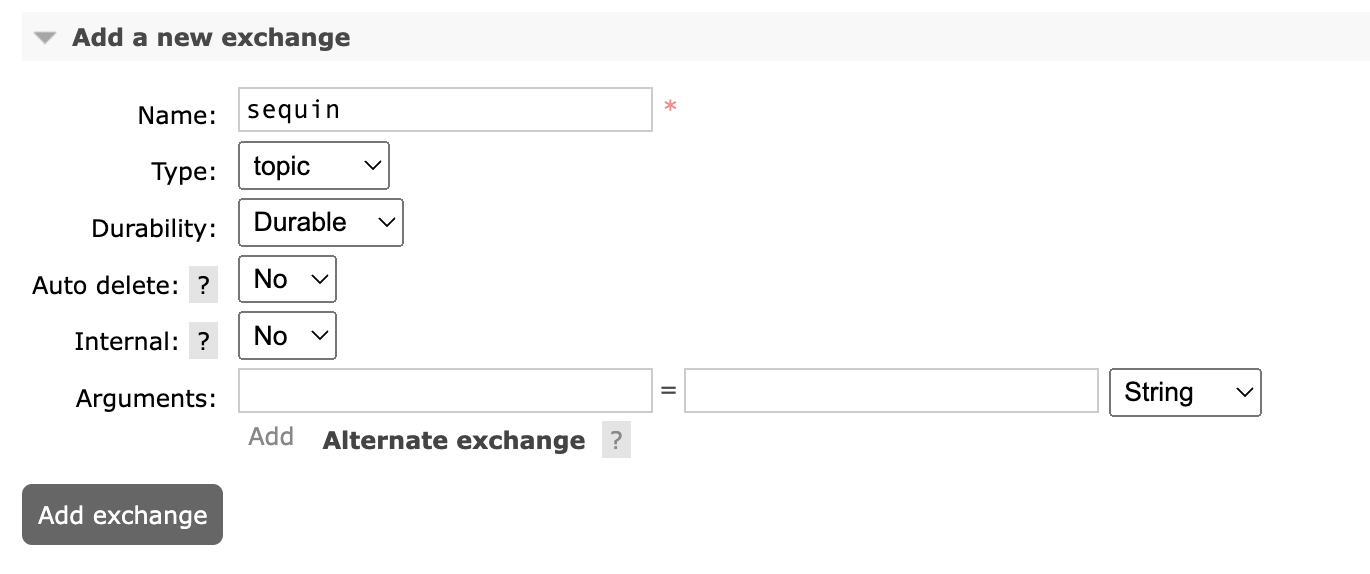
1. Click "Exchanges" in the top navigation
2. Find the "Add a new exchange" accordion and expand it if needed
3. Enter:
* Name: sequin
* Type: topic
* Leave other settings as default
4. Click "Add exchange"
 1. Click "Queues and streams" in the top navigation
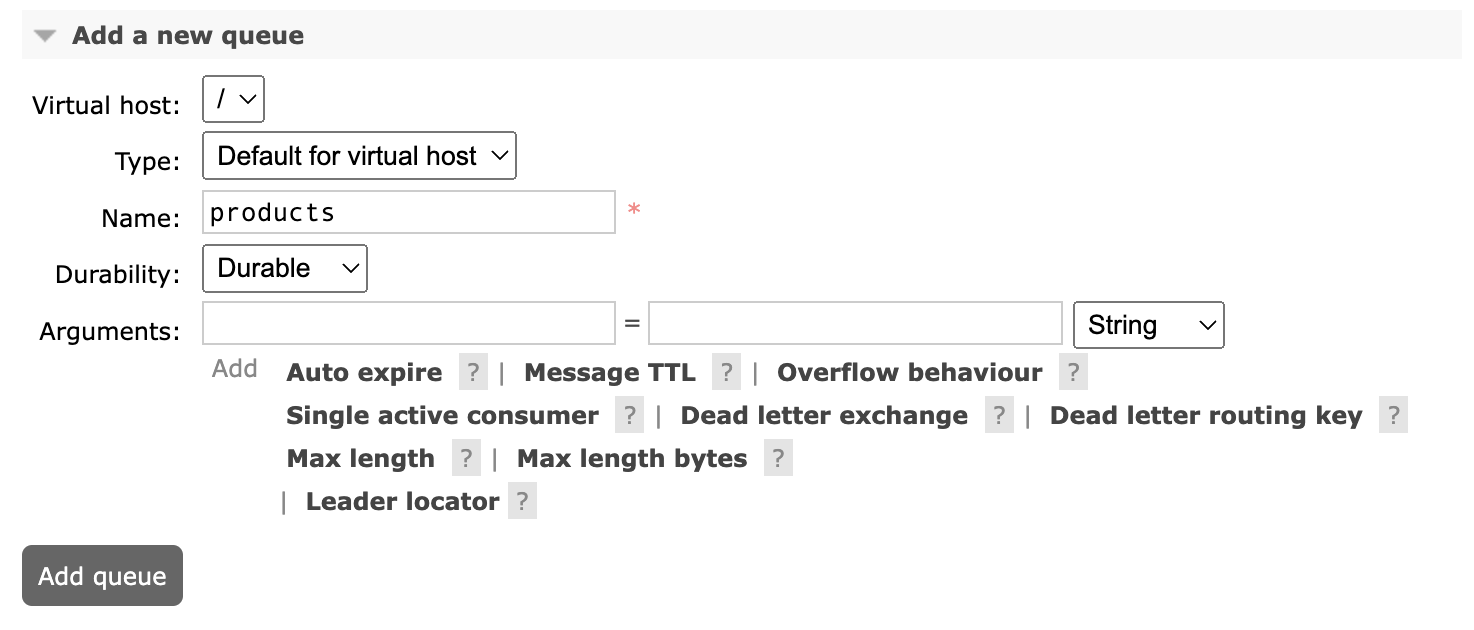
2. Find the "Add a new queue" accordion and expand it if needed
3. Enter:
* Name: products
* Leave other settings as default
4. Click "Add queue"
1. Click "Queues and streams" in the top navigation
2. Find the "Add a new queue" accordion and expand it if needed
3. Enter:
* Name: products
* Leave other settings as default
4. Click "Add queue"
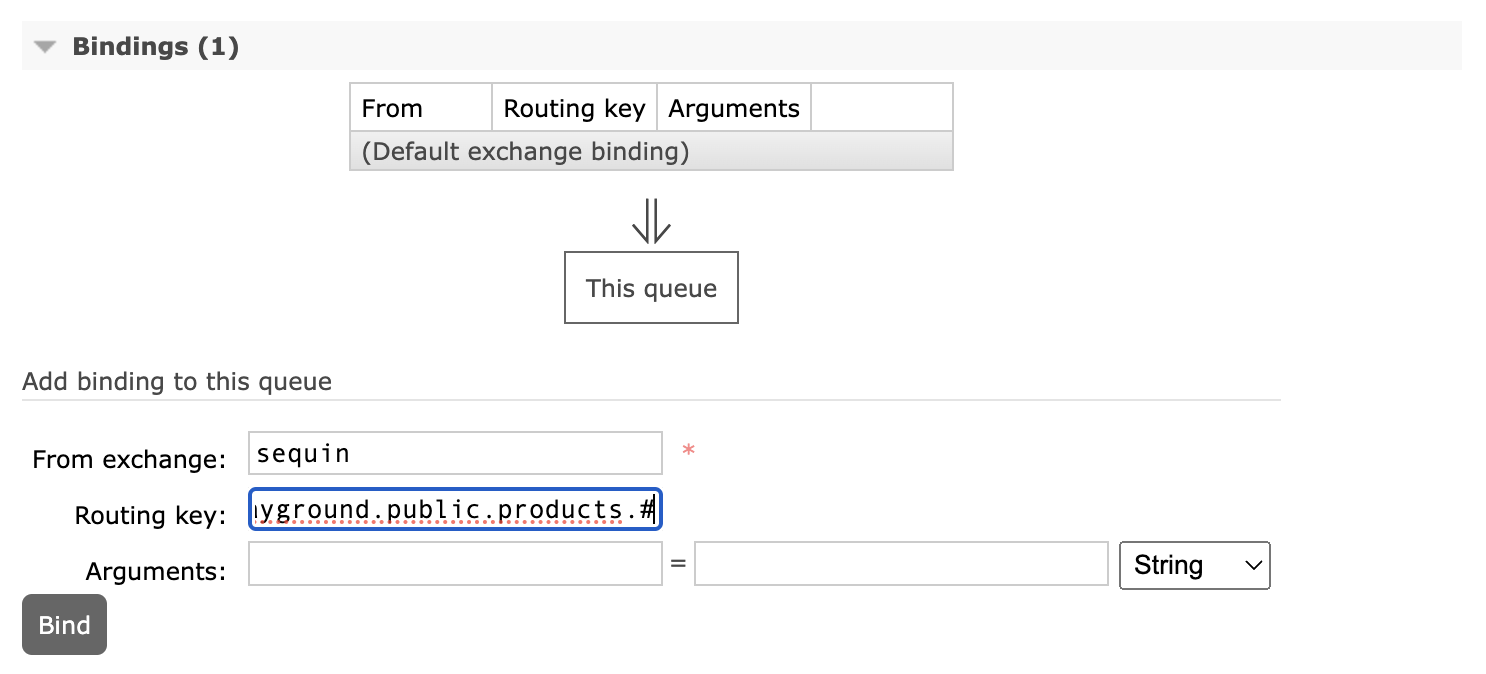
 1. On the "Queues and streams" page, click on your new "products" queue
2. Find the "Bindings" section and expand it if needed
3. In "Add binding to this queue", enter:
* From exchange: sequin
* Routing key: `sequin.sequin_playground.public.products.*`
4. Click "Bind"
This routing key pattern will match all changes to the products table. The format is:
`sequin....`
1. On the "Queues and streams" page, click on your new "products" queue
2. Find the "Bindings" section and expand it if needed
3. In "Add binding to this queue", enter:
* From exchange: sequin
* Routing key: `sequin.sequin_playground.public.products.*`
4. Click "Bind"
This routing key pattern will match all changes to the products table. The format is:
`sequin....`
 You've successfully created an exchange, queue, and binding in RabbitMQ.
The easiest way to get started with Sequin is with our [Docker Compose file](https://github.com/sequinstream/sequin/blob/main/docker/docker-compose.yaml). This file starts a Postgres database, Redis instance, and Sequin server.
1. Download [sequin-docker-compose.zip](https://github.com/sequinstream/sequin/releases/latest/download/sequin-docker-compose.zip).
2. Unzip the file.
3. Navigate to the unzipped directory and start the services:
```bash theme={null}
cd sequin-docker-compose && docker compose up -d
```
```bash theme={null}
curl -L https://github.com/sequinstream/sequin/releases/latest/download/sequin-docker-compose.zip -o sequin-docker-compose.zip \
&& unzip sequin-docker-compose.zip && rm sequin-docker-compose.zip
cd sequin-docker-compose && docker compose up -d
```
```bash theme={null}
git clone git@github.com:sequinstream/sequin.git
cd sequin/docker
docker compose up -d
```
Check that Sequin is running using `docker ps`:
```bash theme={null}
docker ps
```
You should see output like the following:
```
CONTAINER ID IMAGE COMMAND CREATED STATUS PORTS NAMES
bd5c458cabde sequin/sequin:latest "/scripts/start_comm…" 11 seconds ago Up 9 seconds 4000/tcp, 0.0.0.0:7376->7376/tcp sequin-sequin-1
3bacd89765e7 grafana/grafana "/run.sh" 11 seconds ago Up 11 seconds 0.0.0.0:3000->3000/tcp sequin-sequin_grafana-1
3ad41319a66c postgres:16 "docker-entrypoint.s…" 11 seconds ago Up 11 seconds (healthy) 0.0.0.0:7377->5432/tcp sequin-sequin_postgres-1
6139a5fc4e80 redis:7 "docker-entrypoint.s…" 11 seconds ago Up 11 seconds 0.0.0.0:7378->6379/tcp sequin-sequin_redis-1
7e07a5b052de prom/prometheus "/bin/prometheus --c…" 11 seconds ago Up 11 seconds 0.0.0.0:9090->9090/tcp sequin-sequin_prometheus-1
```
Sequin, Postgres, Redis, Prometheus, and Grafana should be up and running (status: `Up`).
The Docker Compose file automatically configures Sequin with an admin user and a playground database.
Let's log in to the Sequin web console:
After starting the Docker Compose services, open the Sequin web console at [http://localhost:7376](http://localhost:7376):
You've successfully created an exchange, queue, and binding in RabbitMQ.
The easiest way to get started with Sequin is with our [Docker Compose file](https://github.com/sequinstream/sequin/blob/main/docker/docker-compose.yaml). This file starts a Postgres database, Redis instance, and Sequin server.
1. Download [sequin-docker-compose.zip](https://github.com/sequinstream/sequin/releases/latest/download/sequin-docker-compose.zip).
2. Unzip the file.
3. Navigate to the unzipped directory and start the services:
```bash theme={null}
cd sequin-docker-compose && docker compose up -d
```
```bash theme={null}
curl -L https://github.com/sequinstream/sequin/releases/latest/download/sequin-docker-compose.zip -o sequin-docker-compose.zip \
&& unzip sequin-docker-compose.zip && rm sequin-docker-compose.zip
cd sequin-docker-compose && docker compose up -d
```
```bash theme={null}
git clone git@github.com:sequinstream/sequin.git
cd sequin/docker
docker compose up -d
```
Check that Sequin is running using `docker ps`:
```bash theme={null}
docker ps
```
You should see output like the following:
```
CONTAINER ID IMAGE COMMAND CREATED STATUS PORTS NAMES
bd5c458cabde sequin/sequin:latest "/scripts/start_comm…" 11 seconds ago Up 9 seconds 4000/tcp, 0.0.0.0:7376->7376/tcp sequin-sequin-1
3bacd89765e7 grafana/grafana "/run.sh" 11 seconds ago Up 11 seconds 0.0.0.0:3000->3000/tcp sequin-sequin_grafana-1
3ad41319a66c postgres:16 "docker-entrypoint.s…" 11 seconds ago Up 11 seconds (healthy) 0.0.0.0:7377->5432/tcp sequin-sequin_postgres-1
6139a5fc4e80 redis:7 "docker-entrypoint.s…" 11 seconds ago Up 11 seconds 0.0.0.0:7378->6379/tcp sequin-sequin_redis-1
7e07a5b052de prom/prometheus "/bin/prometheus --c…" 11 seconds ago Up 11 seconds 0.0.0.0:9090->9090/tcp sequin-sequin_prometheus-1
```
Sequin, Postgres, Redis, Prometheus, and Grafana should be up and running (status: `Up`).
The Docker Compose file automatically configures Sequin with an admin user and a playground database.
Let's log in to the Sequin web console:
After starting the Docker Compose services, open the Sequin web console at [http://localhost:7376](http://localhost:7376):
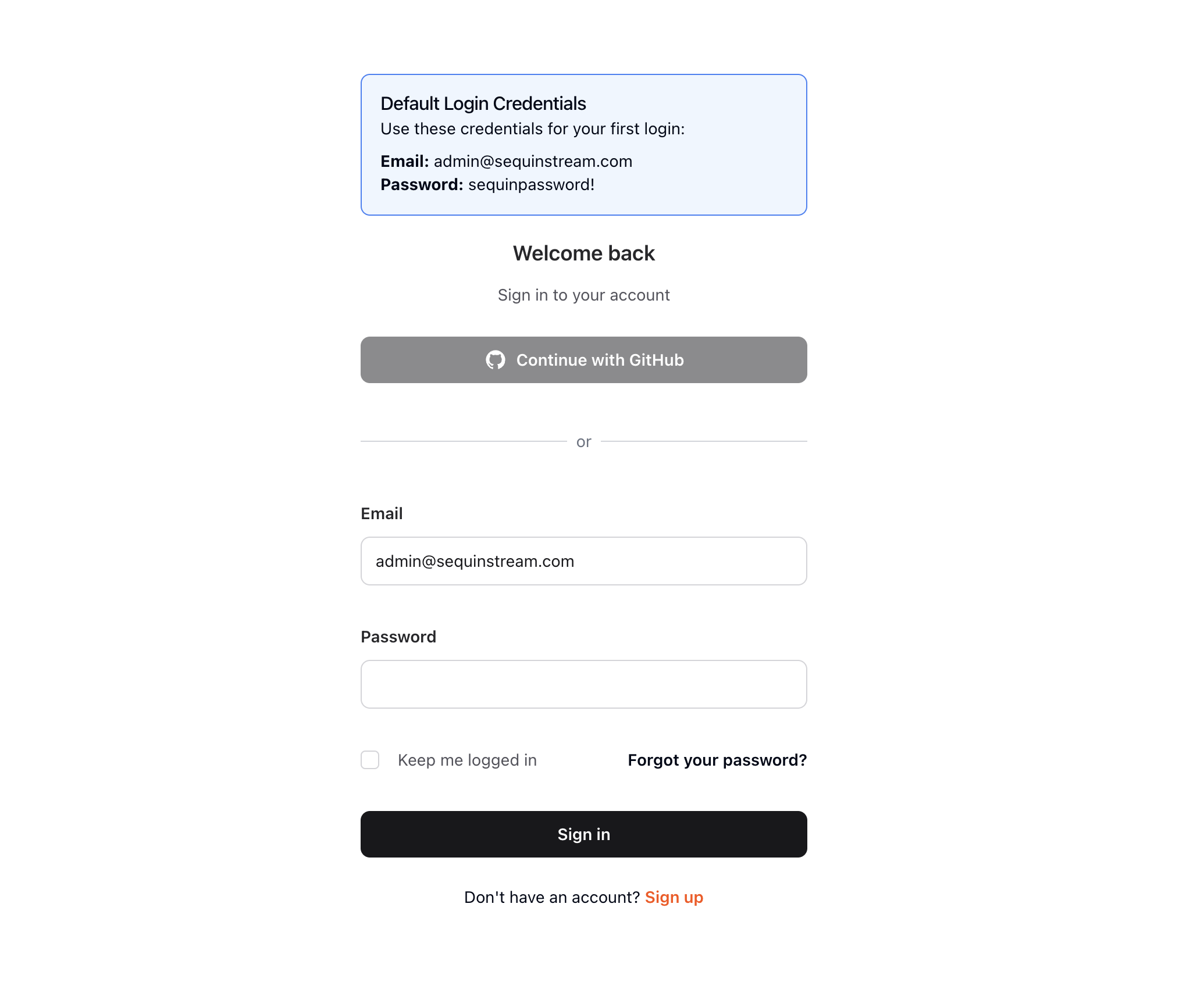 Use the following default credentials to login:
* Email:
```
admin@sequinstream.com
```
* Password:
```
sequinpassword!
```
To get you started quickly, Sequin's Docker Compose file creates a logical database called `sequin_playground` with a sample dataset in the `public.products` table.
Let's take a look:
In the Sequin web console, click **Databases** in the sidebar.
Click on the pre-configured `sequin-playground` database:
Use the following default credentials to login:
* Email:
```
admin@sequinstream.com
```
* Password:
```
sequinpassword!
```
To get you started quickly, Sequin's Docker Compose file creates a logical database called `sequin_playground` with a sample dataset in the `public.products` table.
Let's take a look:
In the Sequin web console, click **Databases** in the sidebar.
Click on the pre-configured `sequin-playground` database:
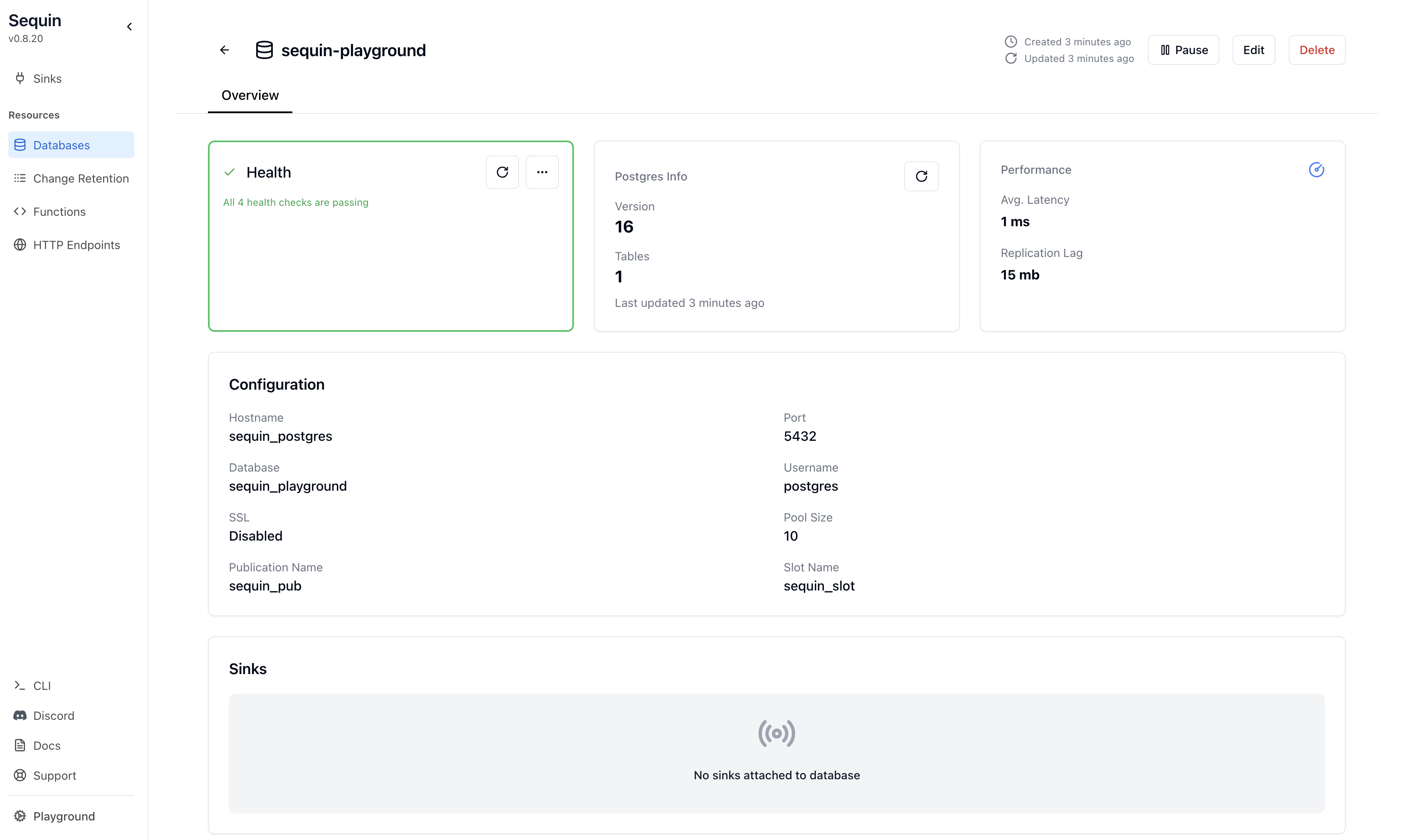 The database "Health" should be green.
Let's get a sense of what's in the `products` table. Run the following command:
```bash theme={null}
docker exec -i sequin-sequin_postgres-1 \
psql -U postgres -d sequin_playground -c \
"select id, name, price from products;"
```
This command connects to the running Postgres container and runs a `psql` command.
You should see a list of the rows in the `products` table:
```
id | name | price
----+-----------------------+-------
1 | Avocados (3 pack) | 5.99
2 | Flank Steak (1 lb) | 8.99
3 | Salmon Fillet (12 oz) | 14.99
4 | Baby Spinach (16 oz) | 4.99
5 | Sourdough Bread | 6.99
6 | Blueberries (6 oz) | 3.99
(6 rows)
```
We'll make modifications to this table in a bit.
With the playground database connected and RabbitMQ configured, you can create a [sink](/reference/sinks/overview). This sink will send changes to the `products` table to your RabbitMQ exchange:
Click "Sinks" in the sidebar navigation, then click "Create Sink".
Select "RabbitMQ" as the sink type and click "Continue".
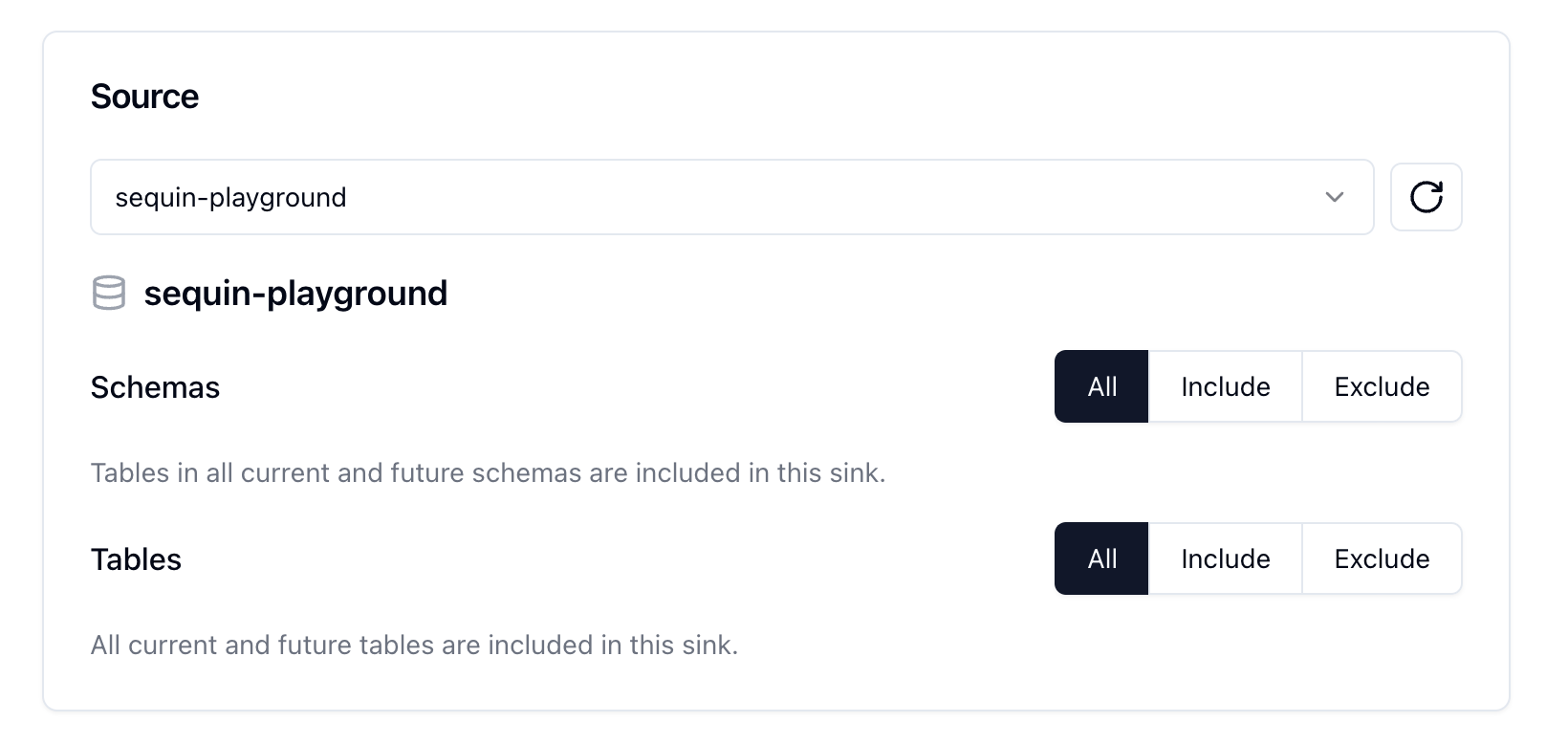
In the "Source" card, note that the `sequin-playground` database is selected and all schemas and tables are included. Leave these defaults:
The database "Health" should be green.
Let's get a sense of what's in the `products` table. Run the following command:
```bash theme={null}
docker exec -i sequin-sequin_postgres-1 \
psql -U postgres -d sequin_playground -c \
"select id, name, price from products;"
```
This command connects to the running Postgres container and runs a `psql` command.
You should see a list of the rows in the `products` table:
```
id | name | price
----+-----------------------+-------
1 | Avocados (3 pack) | 5.99
2 | Flank Steak (1 lb) | 8.99
3 | Salmon Fillet (12 oz) | 14.99
4 | Baby Spinach (16 oz) | 4.99
5 | Sourdough Bread | 6.99
6 | Blueberries (6 oz) | 3.99
(6 rows)
```
We'll make modifications to this table in a bit.
With the playground database connected and RabbitMQ configured, you can create a [sink](/reference/sinks/overview). This sink will send changes to the `products` table to your RabbitMQ exchange:
Click "Sinks" in the sidebar navigation, then click "Create Sink".
Select "RabbitMQ" as the sink type and click "Continue".
In the "Source" card, note that the `sequin-playground` database is selected and all schemas and tables are included. Leave these defaults:
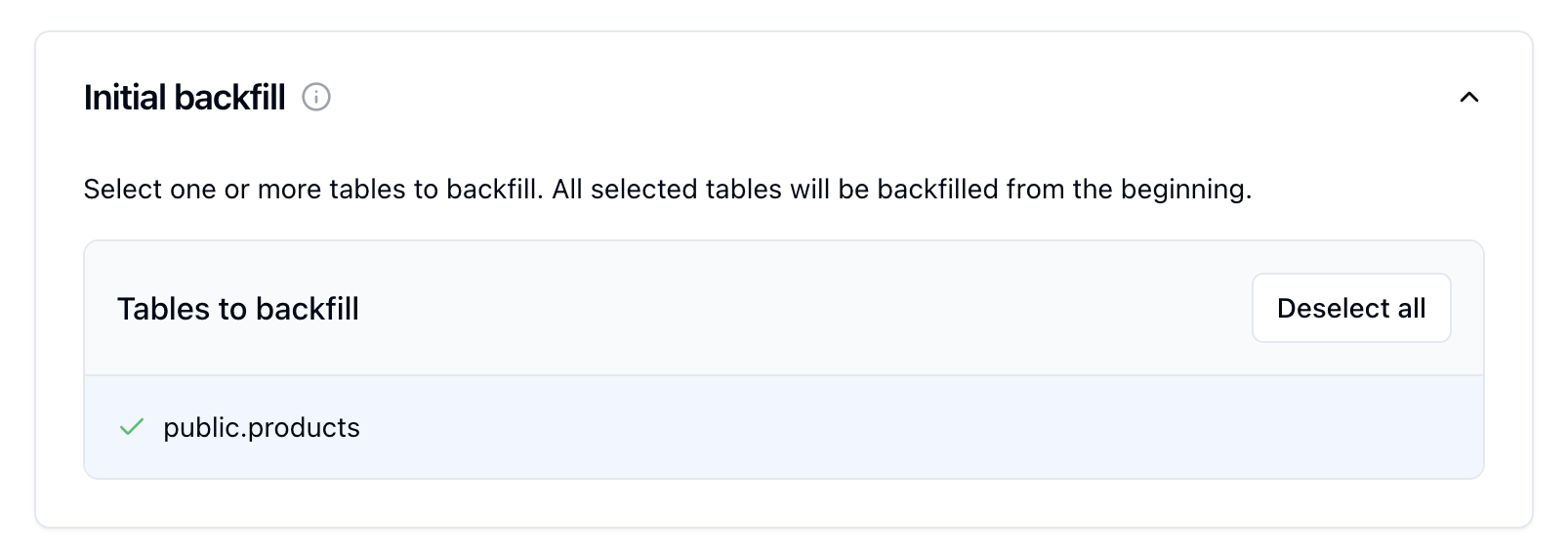
 In the `Inital backfill` card, select the `public.products` table to initate a backfill when the sink is created.
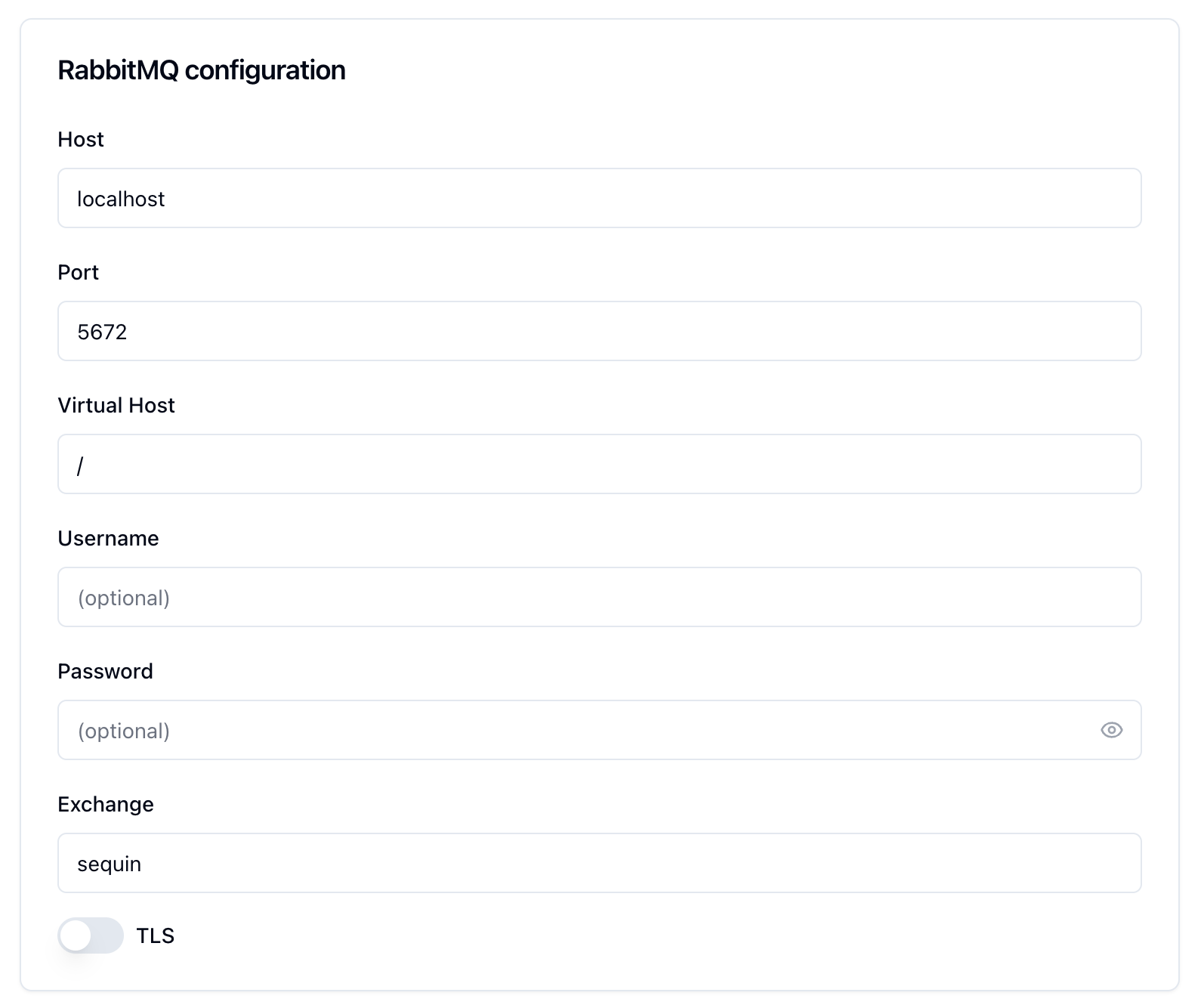
 In the "RabbitMQ Configuration" card, enter your connection details:
* Host: If running locally with Docker, use `host.docker.internal`
* Port: The port RabbitMQ is listening on (default: 5672)
* Exchange: The exchange name we created earlier (`sequin`)
* Username and Password: Leave blank
* SSL: Leave disabled
In the "RabbitMQ Configuration" card, enter your connection details:
* Host: If running locally with Docker, use `host.docker.internal`
* Port: The port RabbitMQ is listening on (default: 5672)
* Exchange: The exchange name we created earlier (`sequin`)
* Username and Password: Leave blank
* SSL: Leave disabled
 At the bottom of the form, click the "Test Connection" button. If you provided proper credentials, it should succeed.
Sequin can connect to your RabbitMQ server.
You can leave the rest of the defaults. As configured, messages will first flow for all existing rows in the `products` table. Then, you'll receive all changes to the `products` table in real-time.
Click "Create Sink" to finish setting up your RabbitMQ sink.
On the new sink's overview page, you should see the "Health" status turn green, indicating data is flowing to RabbitMQ.
Let's confirm messages are flowing:
Click the "Messages" tab. You'll see a list of the recently delivered messages:
At the bottom of the form, click the "Test Connection" button. If you provided proper credentials, it should succeed.
Sequin can connect to your RabbitMQ server.
You can leave the rest of the defaults. As configured, messages will first flow for all existing rows in the `products` table. Then, you'll receive all changes to the `products` table in real-time.
Click "Create Sink" to finish setting up your RabbitMQ sink.
On the new sink's overview page, you should see the "Health" status turn green, indicating data is flowing to RabbitMQ.
Let's confirm messages are flowing:
Click the "Messages" tab. You'll see a list of the recently delivered messages:
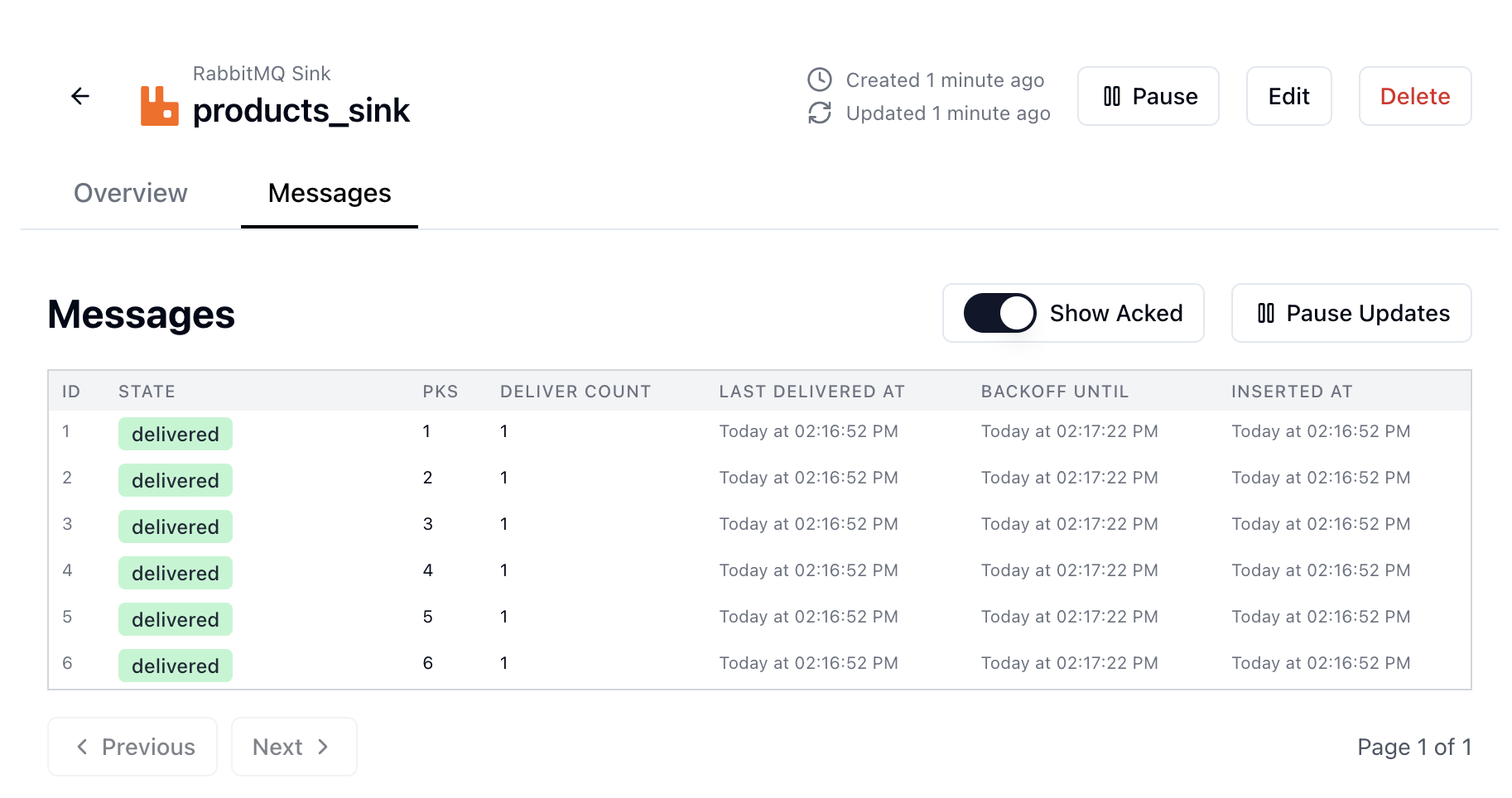 Sequin indicates it backfilled the `products` table to RabbitMQ.
You can view messages in your queue using the RabbitMQ management UI or CLI:
```bash theme={null}
docker exec -it rabbitmq rabbitmqadmin get queue=products count=5 --format=pretty_json
```
You should see the messages that were sent from Sequin. These are [`read` events](/reference/messages) from the initial backfill of the `products` table:
Sequin indicates it backfilled the `products` table to RabbitMQ.
You can view messages in your queue using the RabbitMQ management UI or CLI:
```bash theme={null}
docker exec -it rabbitmq rabbitmqadmin get queue=products count=5 --format=pretty_json
```
You should see the messages that were sent from Sequin. These are [`read` events](/reference/messages) from the initial backfill of the `products` table:
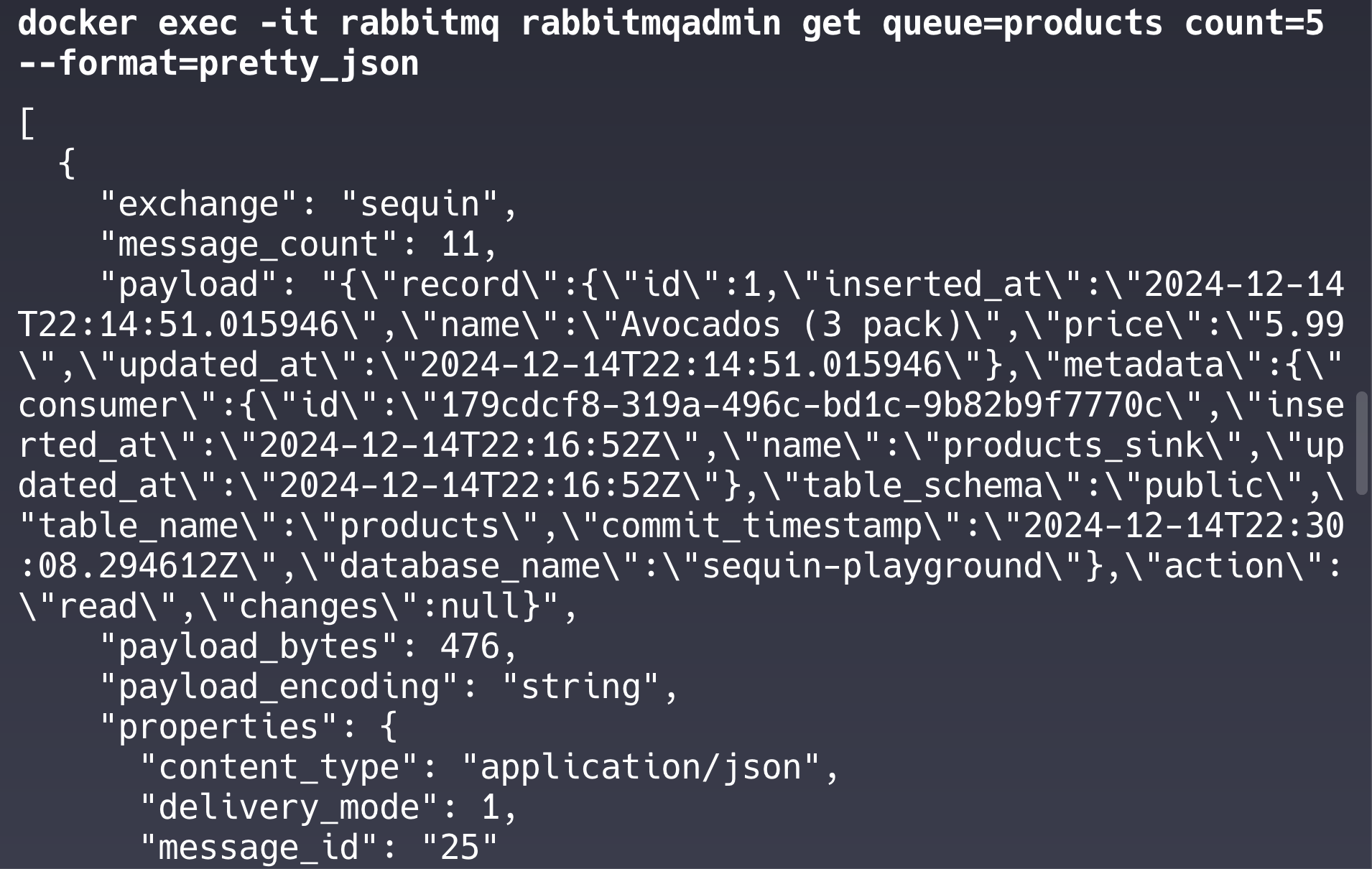 Messages are flowing from Sequin to RabbitMQ.
Let's make some changes to the `products` table and see them flow through RabbitMQ.
In your terminal, run the following command to insert a new row into the `products` table:
```bash theme={null}
docker exec -i sequin-sequin_postgres-1 \
psql -U postgres -d sequin_playground -c \
"insert into products (name, price) values ('Organic Honey (16 oz)', 12.99);"
```
Check your queue for the new message:
```bash theme={null}
docker exec -it rabbitmq rabbitmqadmin get queue=products count=10 --format=pretty_json
```
You should see a message corresponding to the inserted row.
Feel free to try other changes:
```bash theme={null}
docker exec -i sequin-sequin_postgres-1 \
psql -U postgres -d sequin_playground -c \
"update products set price = 7.99 where name = 'Avocados (3 pack)';"
```
```bash theme={null}
docker exec -i sequin-sequin_postgres-1 \
psql -U postgres -d sequin_playground -c \
"update products set name = 'Organic Avocados (3 pack)' where name = 'Avocados (3 pack)';"
```
```bash theme={null}
docker exec -i sequin-sequin_postgres-1 \
psql -U postgres -d sequin_playground -c \
"delete from products where name = 'Blueberries (6 oz)';"
```
Each change will appear in your RabbitMQ queue within a few seconds.
If you want to purge your RabbitMQ queue, you can do so by running:
```bash theme={null}
docker exec -it rabbitmq rabbitmqadmin purge queue name=products
```
Great work!
You've successfully:
* Set up a complete Postgres change data capture pipeline
* Configured RabbitMQ with an exchange, queue, and binding
* Loaded existing data through a backfill
* Made changes to the `products` table
* Verified changes are flowing through RabbitMQ
## Ready to stream
Now you're ready to connect your own database to Sequin and start streaming changes:
Connect your Postgres database to Sequin.
Setup a RabbitMQ sink to stream your changes.
Messages are flowing from Sequin to RabbitMQ.
Let's make some changes to the `products` table and see them flow through RabbitMQ.
In your terminal, run the following command to insert a new row into the `products` table:
```bash theme={null}
docker exec -i sequin-sequin_postgres-1 \
psql -U postgres -d sequin_playground -c \
"insert into products (name, price) values ('Organic Honey (16 oz)', 12.99);"
```
Check your queue for the new message:
```bash theme={null}
docker exec -it rabbitmq rabbitmqadmin get queue=products count=10 --format=pretty_json
```
You should see a message corresponding to the inserted row.
Feel free to try other changes:
```bash theme={null}
docker exec -i sequin-sequin_postgres-1 \
psql -U postgres -d sequin_playground -c \
"update products set price = 7.99 where name = 'Avocados (3 pack)';"
```
```bash theme={null}
docker exec -i sequin-sequin_postgres-1 \
psql -U postgres -d sequin_playground -c \
"update products set name = 'Organic Avocados (3 pack)' where name = 'Avocados (3 pack)';"
```
```bash theme={null}
docker exec -i sequin-sequin_postgres-1 \
psql -U postgres -d sequin_playground -c \
"delete from products where name = 'Blueberries (6 oz)';"
```
Each change will appear in your RabbitMQ queue within a few seconds.
If you want to purge your RabbitMQ queue, you can do so by running:
```bash theme={null}
docker exec -it rabbitmq rabbitmqadmin purge queue name=products
```
Great work!
You've successfully:
* Set up a complete Postgres change data capture pipeline
* Configured RabbitMQ with an exchange, queue, and binding
* Loaded existing data through a backfill
* Made changes to the `products` table
* Verified changes are flowing through RabbitMQ
## Ready to stream
Now you're ready to connect your own database to Sequin and start streaming changes:
Connect your Postgres database to Sequin.
Setup a RabbitMQ sink to stream your changes.