> ## Documentation Index
> Fetch the complete documentation index at: https://sequinstream.com/docs/llms.txt
> Use this file to discover all available pages before exploring further.
# Filters
> Precisely control your data flow with powerful filtering options. Learn to filter by operation type, column values, and even nested JSON fields for efficient CDC processing.
When setting up a sink, you can optionally specify one or more **filters** to apply to the table:
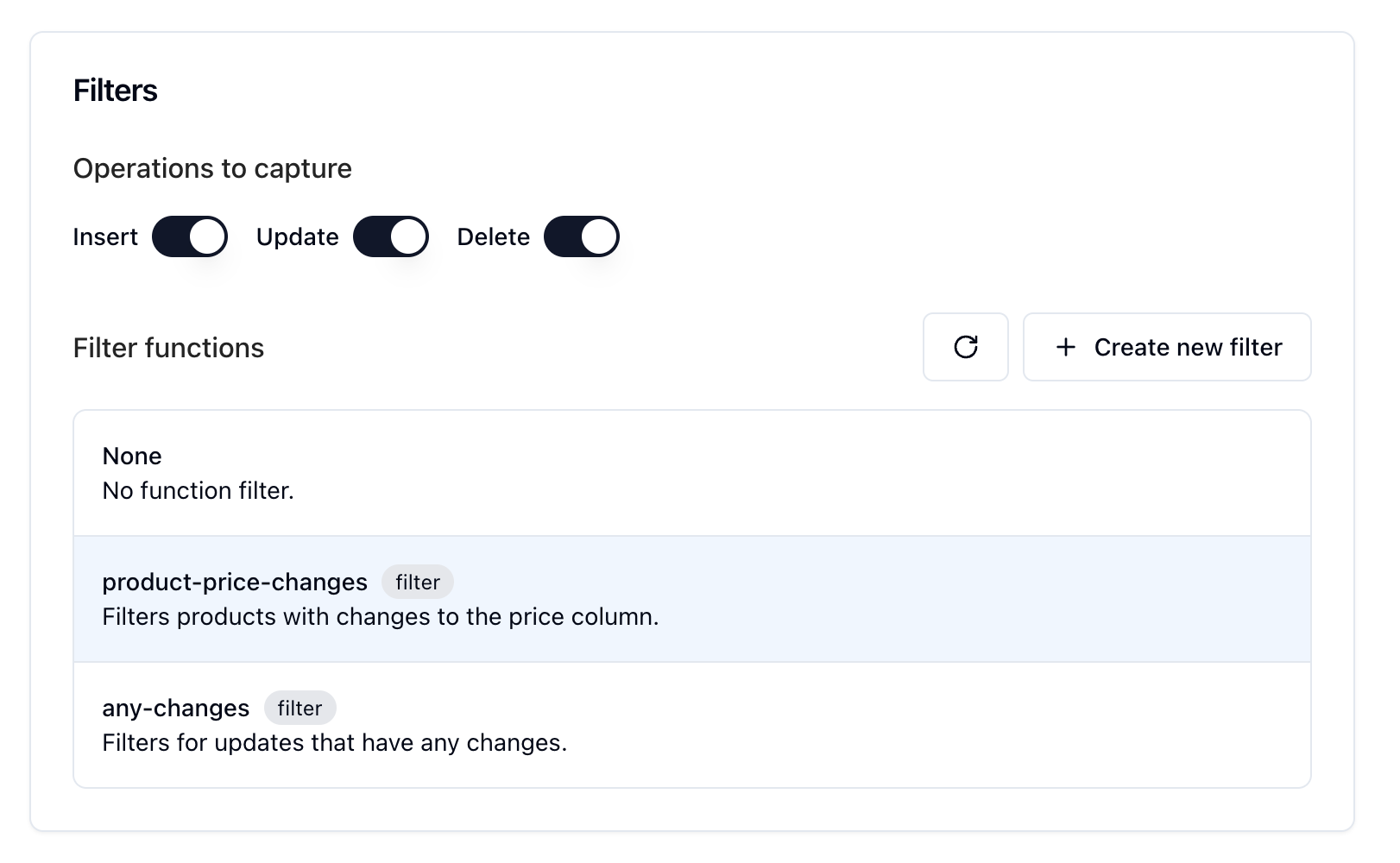 Only changes and rows that match the filters will be sent to the sink.
## Operations to capture
When configuring a sink, you can specify which Postgres operations to capture:
* `insert`
* `update`
* `delete`
If you backfill a table to a sink, Sequin will send `read` messages for each row in the table, regardless of which operations you specify.
## Filter functions
Filter functions provide more advanced filtering capabilities than what's possible with column filters alone. They allow you to:
* Apply complex conditional logic to your data
* Compare new and old values for changed rows
* Use string pattern matching or regular expressions
* Implement custom business logic for filtering
Filter functions are written in Elixir and must return a boolean value (`true` or `false`). Filter functions that return non-boolean values will fail to execute.
### How filter functions work
When you create a filter function, you define an Elixir function that evaluates whether a message should be processed. For each message, your filter function receives:
```elixir theme={null}
def filter(action, record, changes, metadata) do
# Your filtering logic here
# Must return true or false
end
```
Parameters:
* `action`: The operation type (e.g., "insert", "update", "delete")
* `record`: The full row/record data as a map with string keys
* `changes`: For update operations, contains the old values that were changed
* `metadata`: Additional information like table name, timestamp, etc.
### How filters are combined
When you set up a sink with multiple types of filters, all filters are applied with a logical AND. This means the operation must match one of the selected operations (insert, update, delete) and the filter function (if specified) must return `true`.
If any of these conditions fail, the message will not be delivered to the sink.
### Example filter functions
#### Filter by string pattern
```elixir theme={null}
def filter(action, record, changes, metadata) do
# Only process records where name starts with "A"
String.starts_with?(record["name"], "A")
end
```
#### Filter by multiple conditions
```elixir theme={null}
def filter(action, record, changes, metadata) do
# Only process VIP customers with high-value orders
record["customer_type"] == "VIP" and record["is_deleted"] == false
end
```
#### Complex filtering with metadata
```elixir theme={null}
def filter(action, record, changes, metadata) do
# Filter based on both record content and metadata
is_high_priority = record["priority"] == "high"
is_users_table = metadata.table_name == "users"
# Only process high priority records from the users table
is_high_priority and is_users_table
end
```
#### Filtering based on changes
```elixir theme={null}
def filter(action, record, changes, metadata) do
# Only process updates where the status changed from "pending" to "approved"
action == "update" and
changes["status"] == "pending" and
record["status"] == "approved"
end
```
### Testing filter functions
When creating or editing a filter function, Sequin will automatically capture recent events from your database so you can test your function with real data. You'll see a live preview showing which messages would pass or fail your filter.
## Related
Learn about the different fields you can use in filters.
Learn how to transform messages before they are sent to the sink destination.
Learn how to dynamically route messages to different destinations.
Only changes and rows that match the filters will be sent to the sink.
## Operations to capture
When configuring a sink, you can specify which Postgres operations to capture:
* `insert`
* `update`
* `delete`
If you backfill a table to a sink, Sequin will send `read` messages for each row in the table, regardless of which operations you specify.
## Filter functions
Filter functions provide more advanced filtering capabilities than what's possible with column filters alone. They allow you to:
* Apply complex conditional logic to your data
* Compare new and old values for changed rows
* Use string pattern matching or regular expressions
* Implement custom business logic for filtering
Filter functions are written in Elixir and must return a boolean value (`true` or `false`). Filter functions that return non-boolean values will fail to execute.
### How filter functions work
When you create a filter function, you define an Elixir function that evaluates whether a message should be processed. For each message, your filter function receives:
```elixir theme={null}
def filter(action, record, changes, metadata) do
# Your filtering logic here
# Must return true or false
end
```
Parameters:
* `action`: The operation type (e.g., "insert", "update", "delete")
* `record`: The full row/record data as a map with string keys
* `changes`: For update operations, contains the old values that were changed
* `metadata`: Additional information like table name, timestamp, etc.
### How filters are combined
When you set up a sink with multiple types of filters, all filters are applied with a logical AND. This means the operation must match one of the selected operations (insert, update, delete) and the filter function (if specified) must return `true`.
If any of these conditions fail, the message will not be delivered to the sink.
### Example filter functions
#### Filter by string pattern
```elixir theme={null}
def filter(action, record, changes, metadata) do
# Only process records where name starts with "A"
String.starts_with?(record["name"], "A")
end
```
#### Filter by multiple conditions
```elixir theme={null}
def filter(action, record, changes, metadata) do
# Only process VIP customers with high-value orders
record["customer_type"] == "VIP" and record["is_deleted"] == false
end
```
#### Complex filtering with metadata
```elixir theme={null}
def filter(action, record, changes, metadata) do
# Filter based on both record content and metadata
is_high_priority = record["priority"] == "high"
is_users_table = metadata.table_name == "users"
# Only process high priority records from the users table
is_high_priority and is_users_table
end
```
#### Filtering based on changes
```elixir theme={null}
def filter(action, record, changes, metadata) do
# Only process updates where the status changed from "pending" to "approved"
action == "update" and
changes["status"] == "pending" and
record["status"] == "approved"
end
```
### Testing filter functions
When creating or editing a filter function, Sequin will automatically capture recent events from your database so you can test your function with real data. You'll see a live preview showing which messages would pass or fail your filter.
## Related
Learn about the different fields you can use in filters.
Learn how to transform messages before they are sent to the sink destination.
Learn how to dynamically route messages to different destinations.