

- Boot Sequin
- Connect to a sample playground database
- Start Meilisearch and create an index
- Set up a sink to sync changes to Meilisearch
- See your changes flow in real-time
Run Sequin
The easiest way to get started with Sequin is with our Docker Compose file. This file starts a Postgres database, Redis instance, and Sequin server.
1
Create directory and start services
- Download sequin-docker-compose.zip.
- Unzip the file.
- Navigate to the unzipped directory and start the services:
Alternative: Download with curl
Alternative: Download with curl
Alternative: Clone the repository
Alternative: Clone the repository
2
Verify services are running
Check that Sequin is running using You should see output like the following:
docker ps:Sequin, Postgres, Redis, Prometheus, and Grafana should be up and running (status:
Up).Login
The Docker Compose file automatically configures Sequin with an admin user and a playground database.Let’s log in to the Sequin web console:
1
Open the web console
After starting the Docker Compose services, open the Sequin web console at http://localhost:7376: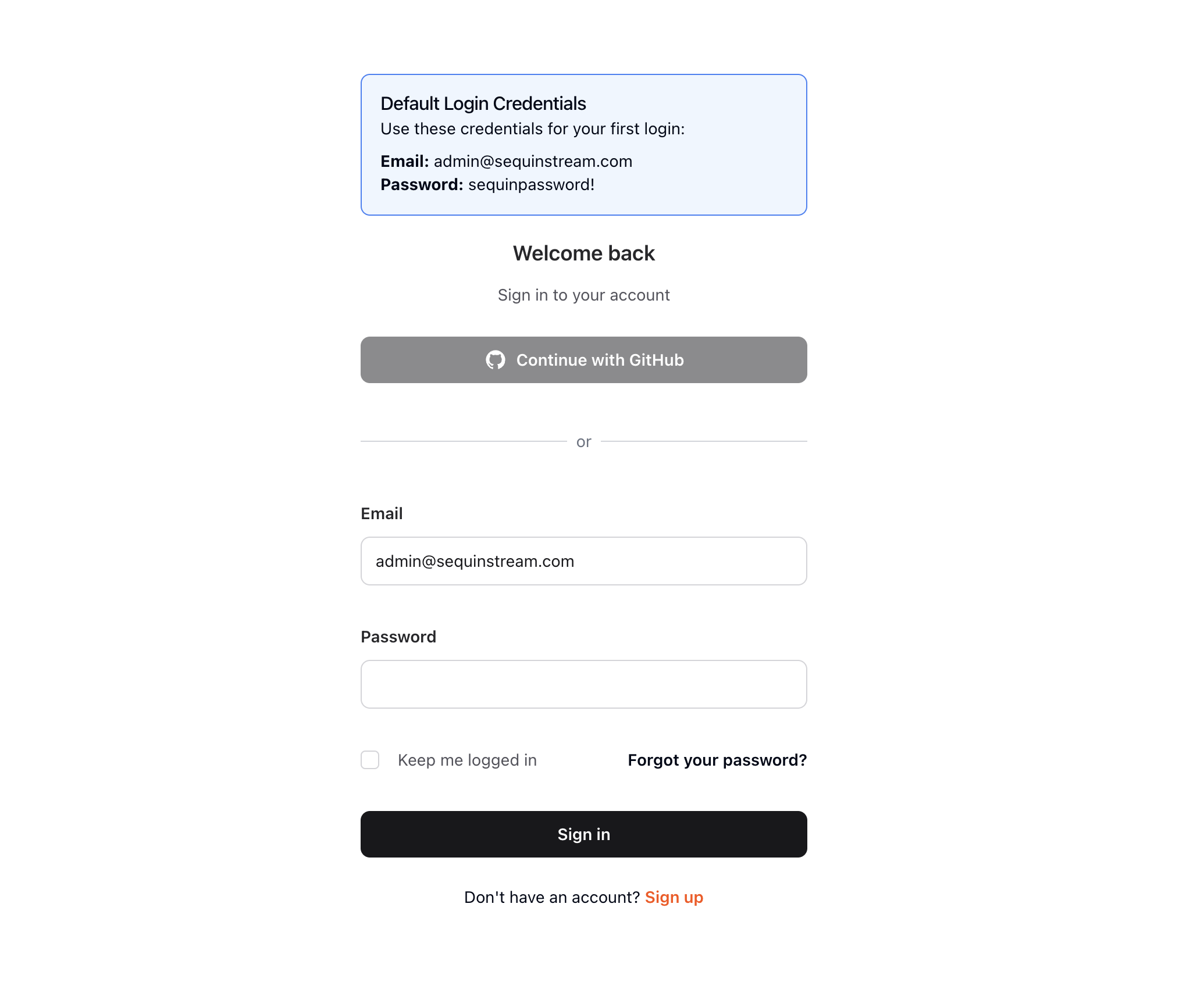
2
Login with default credentials
Use the following default credentials to login:
- Email:
- Password:
View the playground database
To get you started quickly, Sequin’s Docker Compose file creates a logical database called
sequin_playground with a sample dataset in the public.products table.Let’s take a look:1
Navigate to Databases
In the Sequin web console, click Databases in the sidebar.
2
Select playground database
Click on the pre-configured 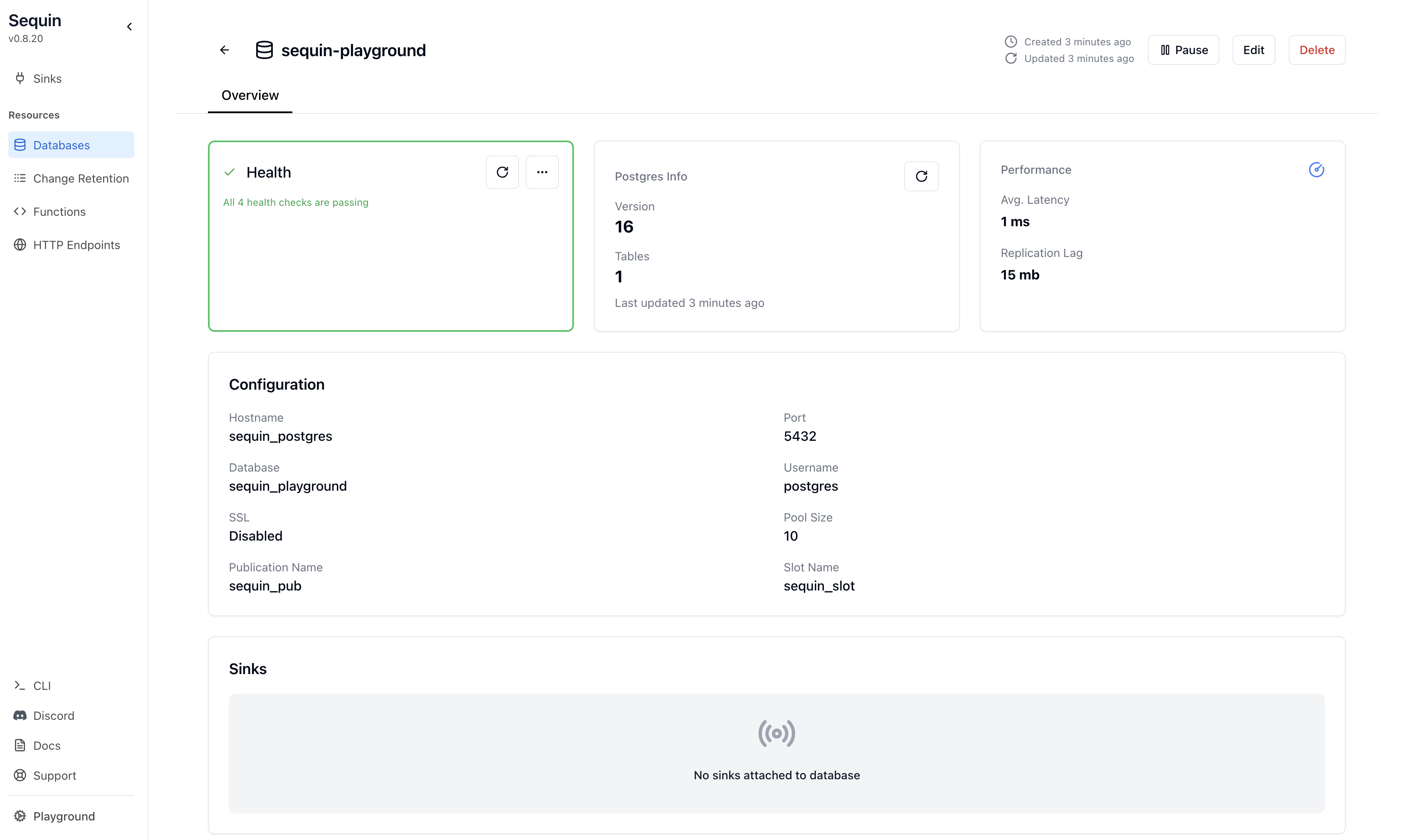
sequin-playground database:The database “Health” should be green.
3
View contents of the products table
Let’s get a sense of what’s in the You should see a list of the rows in the We’ll make modifications to this table in a bit.
products table. Run the following command:This command connects to the running Postgres container and runs a
psql command.products table:Create a Meilisearch Index
First, let’s start Meilisearch and create an index to store our product data:
1
Start Meilisearch
Meilisearch offers a docker image that can be run locally. Let’s start it up:
2
Create the index
Run the following command to create a new index called “products”:Meilisearch will create the index and infer document structure from inserted data.
3
Verify the index
You can verify the index was created by listing all indexes:You should see the
products index listed.Create a Meilisearch Sink
With the playground database connected and Meilisearch index created, you can create a sink. This sink will send changes to the
products table to your Meilisearch index:1
Navigate to Sinks
Click “Sinks” in the sidebar navigation, then click “Create Sink”.
2
Select sink type
Select “Meilisearch” as the sink type and click “Continue”.
3
Note "Source" configuration
In the “Source” card, note that the 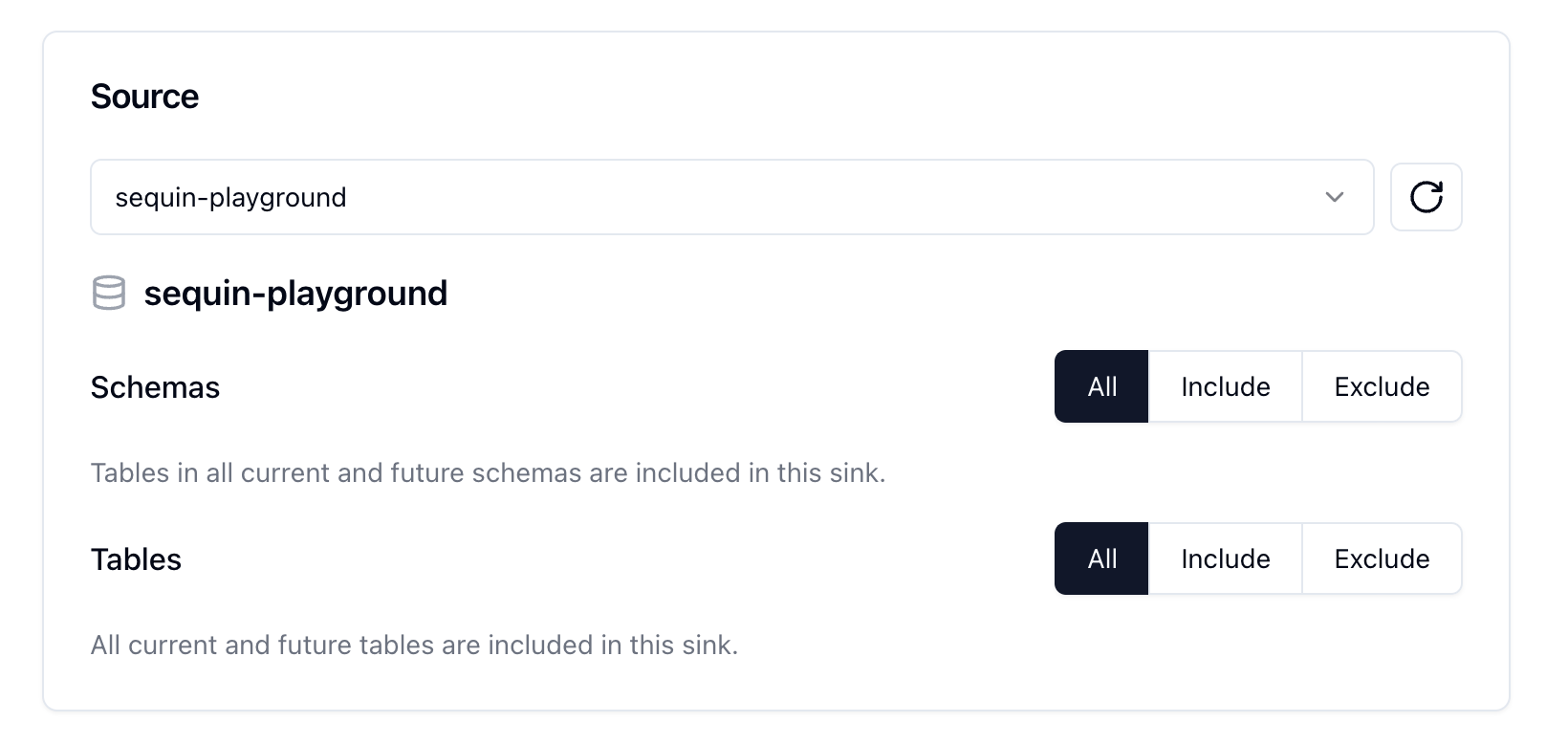
sequin-playground database is selected and all schemas and tables are included. Leave these defaults:4
Setup a transform
In the Transform card, click the toggle to view existing transforms. None exist, so click ”+ Create new transform”.For “Transform name”, put This transform will take the 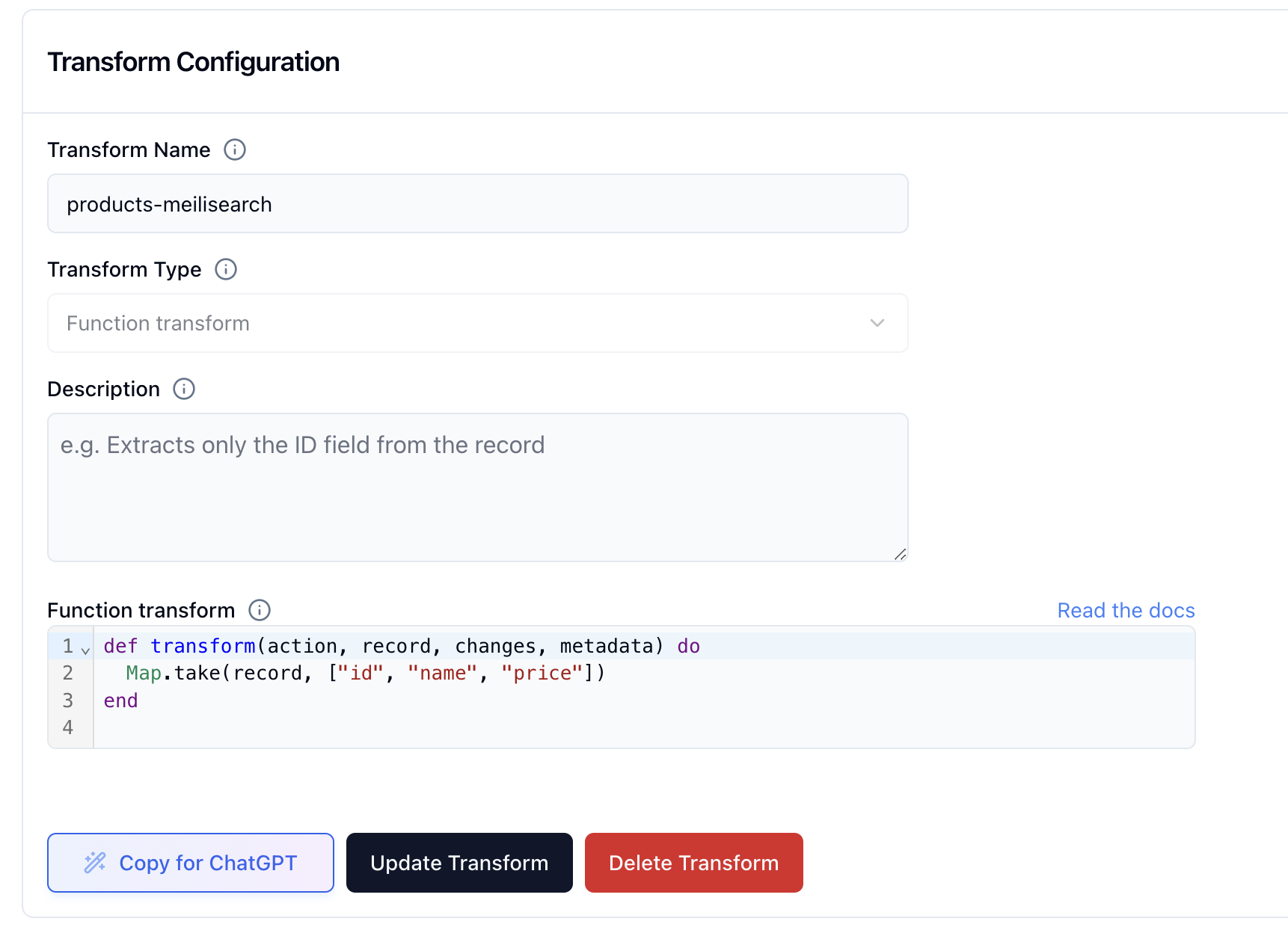
products-meilisearch. For “Transform type”, select “Transform function”.In the “Transform function” field, input the following code:id, name, and price fields from the products table and use them to create a new document in Meilisearch.products-meilisearch in the transform list.5
Setup a backfill
In the 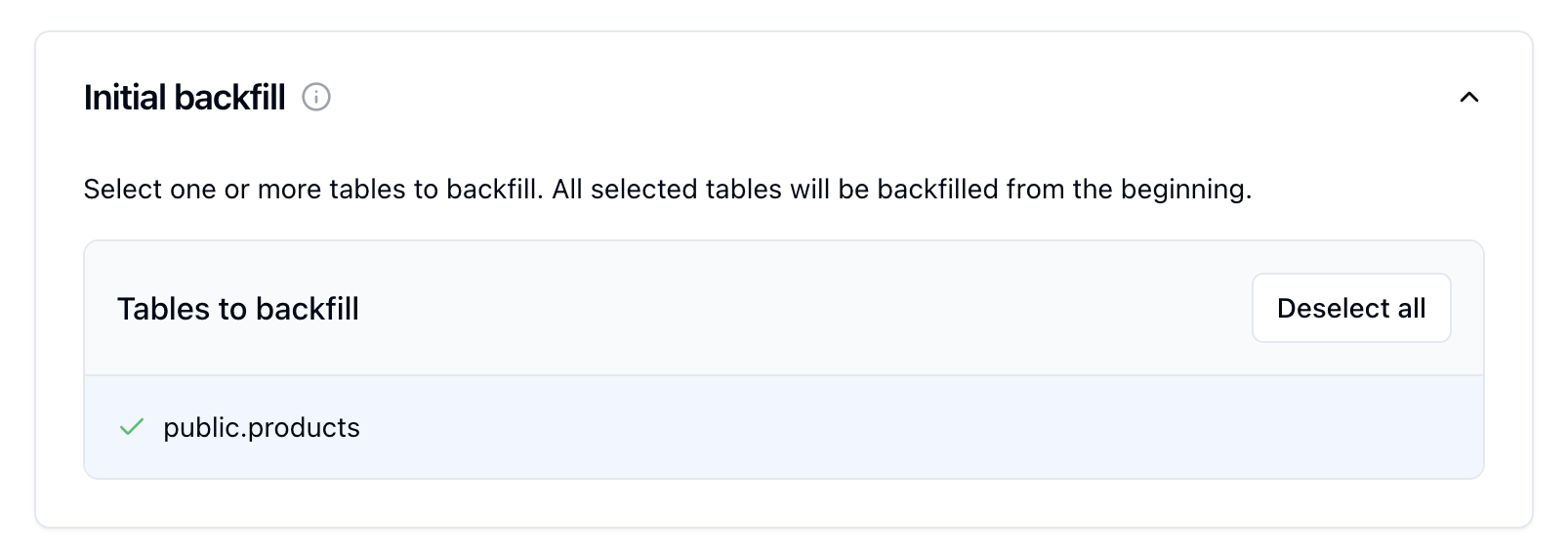
Inital backfill card, select the public.products table to initate a backfill when the sink is created.6
Configure Meilisearch
In the Meilisearch card, enter your configuration: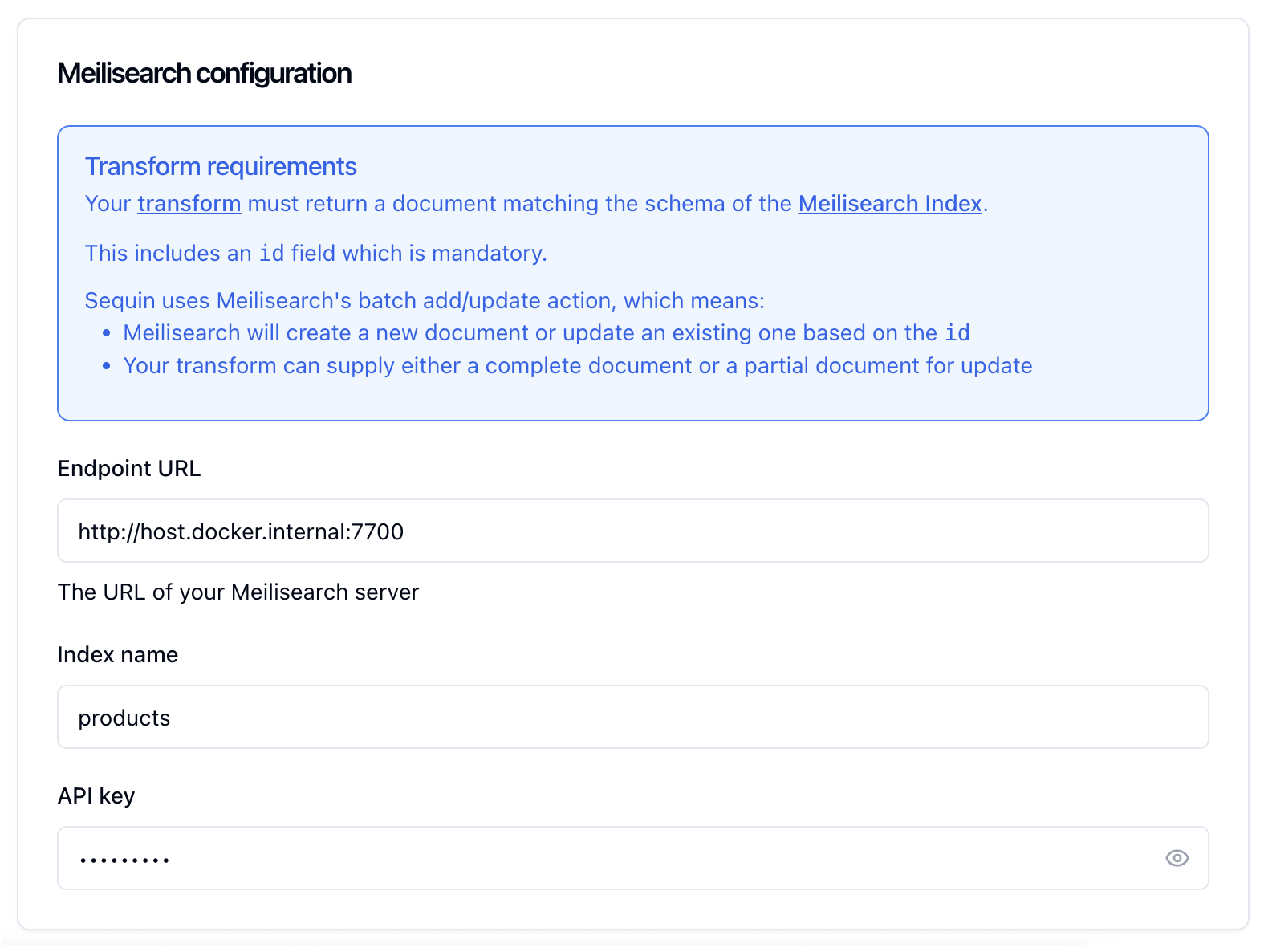
- Host:
http://host.docker.internal:7700 - Index name:
products - Primary key:
id - API Key:
my-api-key
7
Create the sink
Give your sink a name, like
products-meilisearch, and click “Create Sink”.The Meilisearch index will first receive a backfill, then will stay in sync in real-time.Query your data in Meilisearch
With the backfill complete, query Meilisearch for your To search for “avocado”:
products:See changes flow to Meilisearch
On the new sink’s overview page, watch for a green “Health” status.Now make changes and see them appear in Meilisearch:Then search in Meilisearch:
1
Insert a product
Great work!
- Created a Meilisearch index
- Loaded existing data through a backfill
- Made changes to the
productstable - Verified changes are flowing to Meilisearch
- Tested search functionality
- Set up a complete Postgres change data capture pipeline
Ready to stream
Now you’re ready to connect your own database to Sequin and start streaming changes:Guide: Connect Postgres
Connect your Postgres database to Sequin.
Guide: Setting up a Meilisearch sink
Setup a Meilisearch sink to keep your search index in sync.